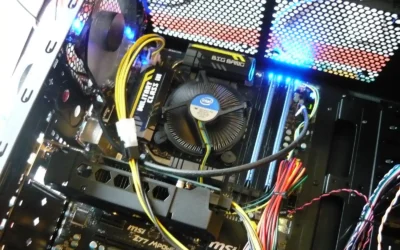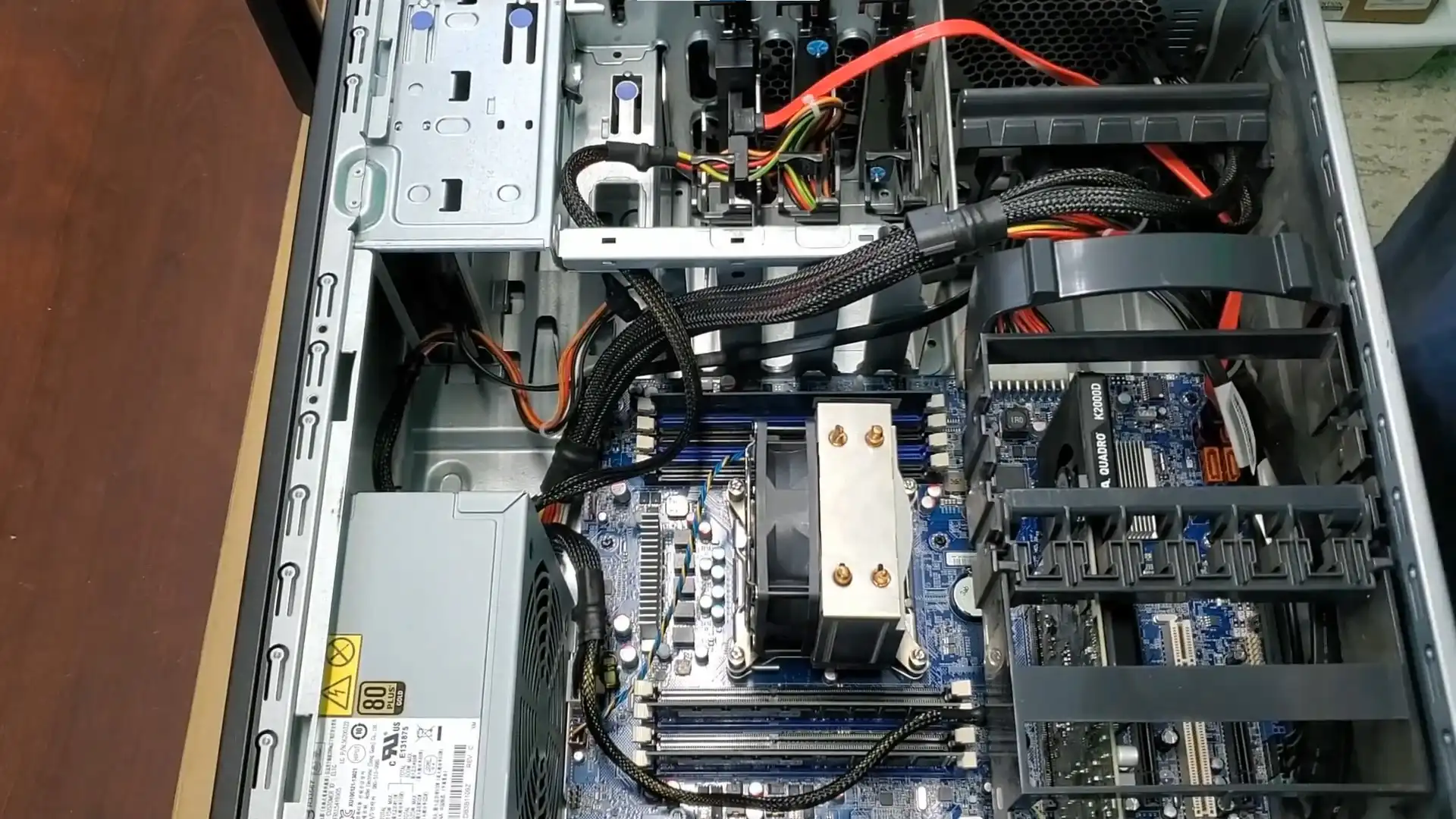
Upgrading your computer for video editing doesn’t have to break the bank. In this article, we’ll show you how to refurbish a Lenovo ThinkStation S30 Workstation on a budget for video editing. Follow along to turn an older system into a powerful video editing machine.
Table of Contents
Watch My YouTube Video: A Lenovo ThinkStation S30 Workstation Refurbished on a Budget for Video Editing
Lenovo ThinkStation S30 Setup and Preparation
Let’s talk about a Lenovo ThinkStation S30 Workstation refurbished on a budget for video editing. Before diving into refurbishing, ensure you have all the necessary components. We’re upgrading a Lenovo ThinkStation S30 for this project to serve as a dedicated video editing workstation. It’s equipped with a 610-watt power supply and initially comes with 12GB of RAM and a 512GB Samsung Pro SSD.
First, gather the following parts:
- NVIDIA GeForce RTX 3060 video card
- 64GB of RAM (eight 8GB modules)
- Additional SSD or NVMe drive for extra storage
- PCI Express adapter for the NVMe drive
Installing a New Video Card
We’re upgrading the video card to enhance video editing capabilities. The Lenovo S30 originally came with two six-pin connectors, while the RTX 3060 requires an eight-pin connector. An adapter can combine the two six-pin connectors into one eight-pin connector.
Steps to install the video card:
- Remove the existing Quadro K2000D card.
- Insert the RTX 3060 into the PCIe slot.
- Connect the eight-pin power adapter to the card.

Upgrading a Lenovo ThinkStation S30 Workstation
Upgrading the Memory
Video editing demands substantial memory. Upgrading from 12GB to 64GB ensures smoother performance and faster processing. The Lenovo ThinkStation S30 has eight memory slots, which is perfect for our upgrade plan.
Here’s how to upgrade the memory:
- Remove the existing 12GB of RAM.
- Install an 8GB RAM module into each of the eight slots.
- Ensure each module is properly seated for optimal performance.
Optimizing Storage Solutions
Efficient storage is crucial for video editing. The Lenovo S30’s 512GB SSD is a solid start, but adding an NVMe drive via a PCIe adapter can significantly boost speed and capacity.
Follow these steps to optimize storage:
- Install the PCIe adapter into an available slot.
- Attach the NVMe drive to the adapter.
- Use additional SSDs for storage as needed, leveraging the available SATA ports.
For a detailed guide on choosing the right NVMe drive, check out this comprehensive article.
Additional Upgrades and Tips
Beyond the main upgrades, a few extra steps can enhance the performance and longevity of your refurbished workstation. Consider the following tips:
- Apply New Thermal Paste: Reapply thermal paste to the CPU and GPU to ensure efficient cooling.
- Replace the CMOS Battery: Install a new CMOS battery for better system reliability.
- Clean the System: Thoroughly clean the internal components to prevent dust buildup and overheating.
- Add Extra Cooling: Install a 90mm case fan to improve airflow and cool the system under heavy loads.
For detailed instructions on maintaining your computer’s cooling system, refer to this helpful information.
Conclusion
Refurbishing a Lenovo ThinkStation S30 on a budget for video editing is feasible and highly rewarding. With the right upgrades, you can transform an older workstation into a powerful tool for your video editing needs. By following the steps outlined in this article, you’ll be well on your way to achieving professional-grade video editing capabilities without a significant financial outlay.
Explore this article on the best video editing computers for more tips on upgrading your workstation.
Feel free to share your experiences and tips in the comments section of my YouTube video on this topic. Happy editing!