If you’re running out of hard drive space and facing the frustration of having no more available drive bays, you’re not alone. Many of us have been there, needing more storage but unsure how to fit it into a compact PC setup. This guide will show you a practical solution: installing a hard drive in a 5.25-inch bay, typically used for DVD drives. This straightforward method allows you to expand your storage without the need for drastic changes to your system.
Table of Contents
Watch My YouTube Video on Installing any Hard Drive in a 5.25 Inch Bay
Why Convert a DVD Bay to a Hard Drive Bay?
In many modern computers, especially compact builds, space for additional hard drives is limited. When all the drive bays are occupied, but you still need more storage, converting an unused DVD bay into a hard drive bay is a smart workaround. This method uses an affordable conversion kit, making it accessible for everyone.
Tools Needed for the Conversion
Before starting, make sure you have the following tools and materials on hand:
- 5.25-inch to 3.5-inch conversion kit (e.g., Vantec)
- Phillips screwdriver
- SATA cable
- Power cable
- Hard drive (HDD or SSD)

Step-by-Step Guide
Opening the PC Case
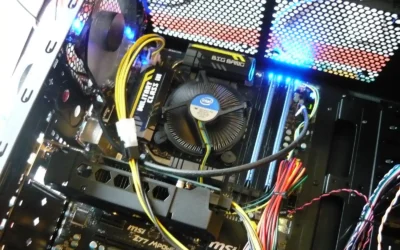
Lay your PC on its side and carefully remove the case cover to access the internal components. This step is crucial for reaching the DVD drive bay.
Removing the DVD Drive
Locate the DVD drive, unscrew the mounting screws, and disconnect the power and SATA cables. Once disconnected, slide the DVD drive out of the bay.
Installing the Conversion Kit
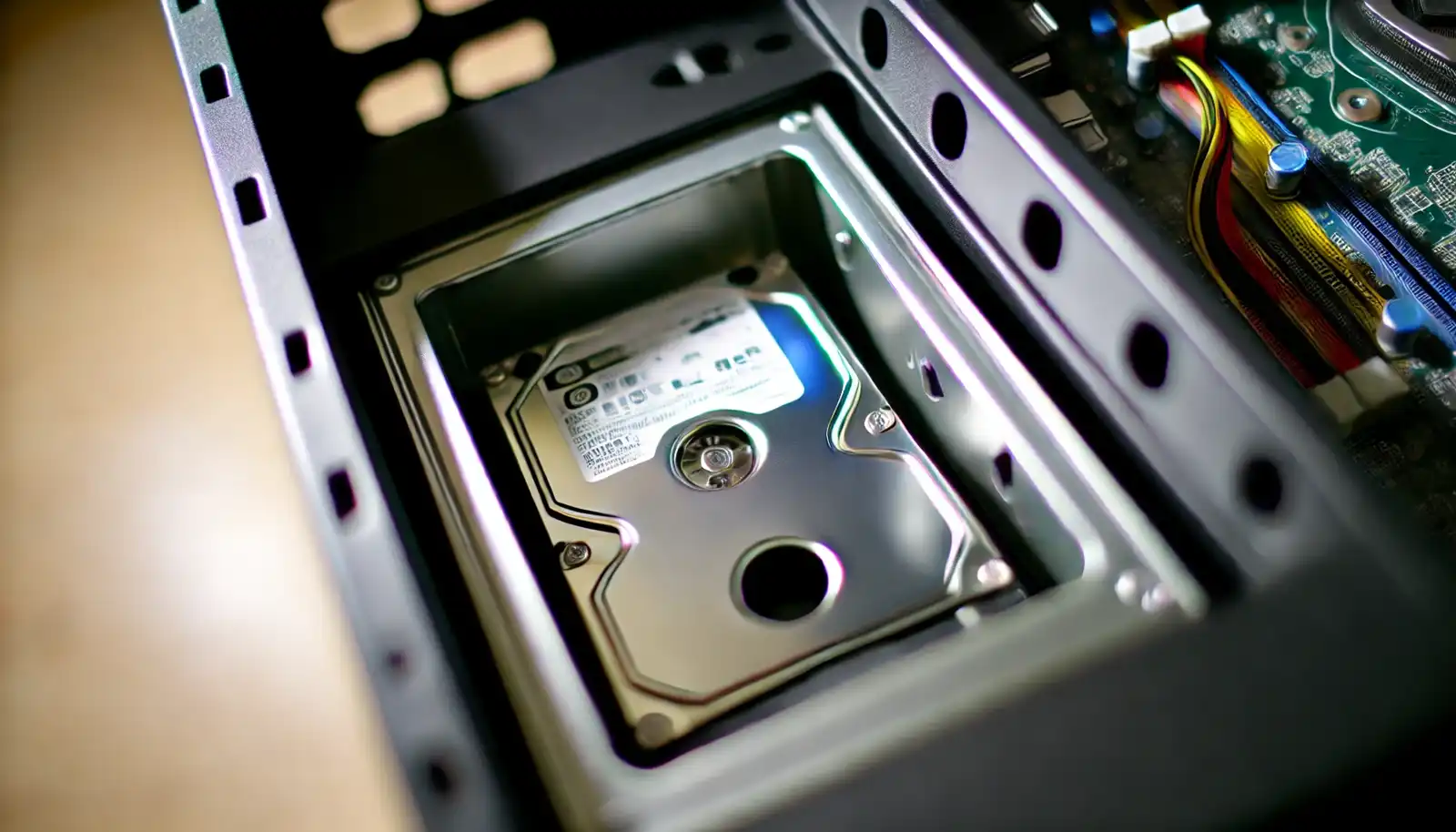
Insert the 5.25-inch to 3.5-inch conversion kit into the empty DVD drive bay. Ensure it fits snugly and aligns with the screw holes. Secure the kit with screws for stability.
Mounting the Hard Drive
Attach your hard drive to the conversion kit using the provided screws. Ensure the connections are facing outward for easy access. This setup works for both HDDs and SSDs.
Connecting Cables
Connect the SATA cable to your hard drive and then to an available SATA port on your motherboard. Next, connect the power cable from your power supply to the hard drive.
Reassembling the PC
Once everything is connected, carefully reassemble your PC by putting the case cover back on. Ensure all screws are tightened properly to avoid any loose components.

Testing and Final Tips
Once the installation is finished, power on your PC and check to see whether the new hard drive is identified. Tools like CrystalDiskInfo make verifying the state and condition of your drive much easier. This stage guarantees the correct operation of your hard drive.
Double-check the connections to ensure the SATA and power cables are securely secured should your disk not be found. Reconnecting these connections often fixes detection problems.
For those eager to dive deeper into hardware upgrades, explore this guide on installing new hard drives. Additionally, understanding different storage options can be helpful, as discussed here.
Following these steps, you can effectively install any hard drive in a 5.25-inch bay, optimizing your storage setup. Whether you need extra space for backups or additional programs, this method provides a reliable solution.