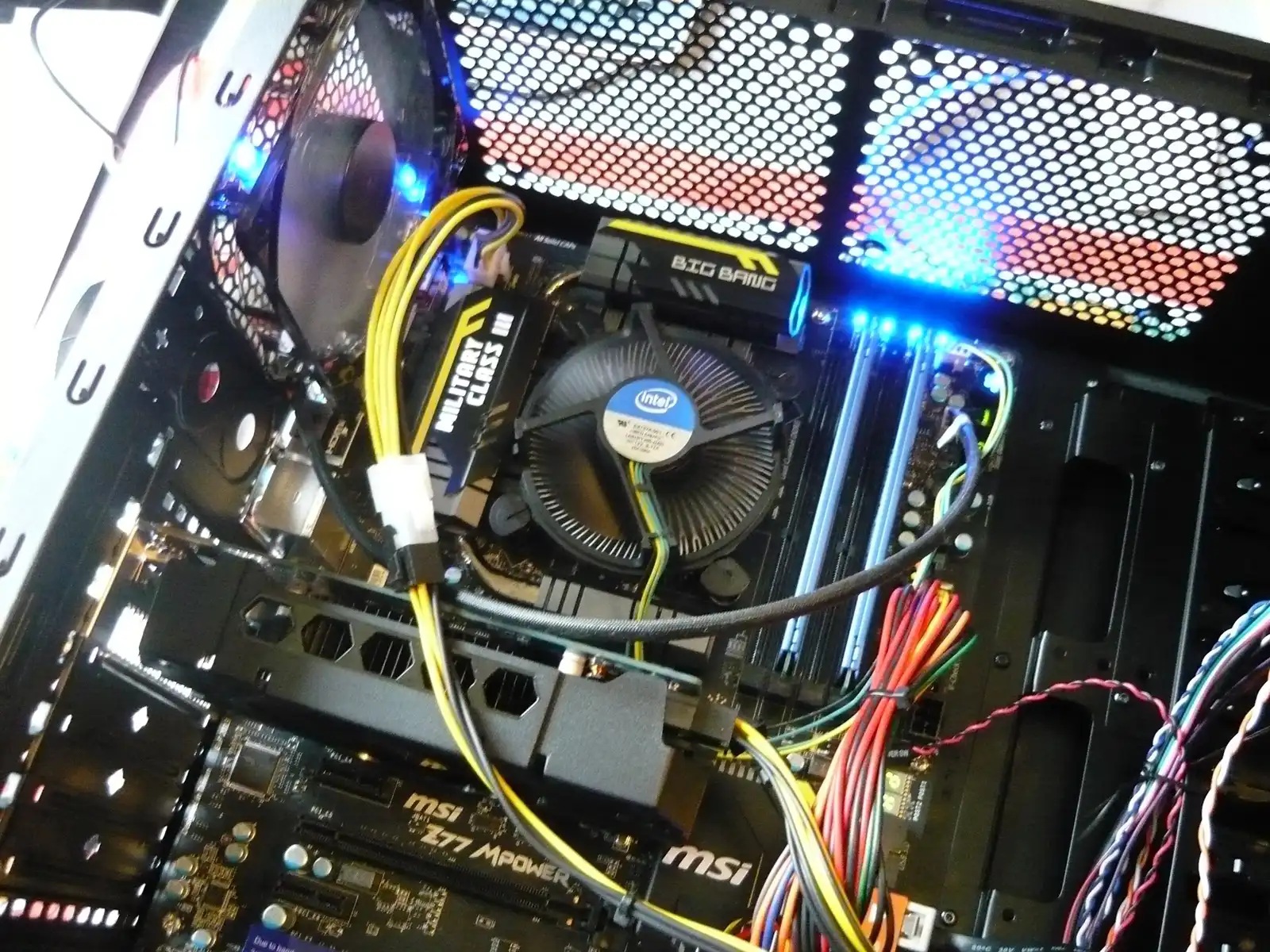
Read Refurbishing a PC, a step-by-step guide to learn how to refurbish your PC, extend its life, and boost performance. By following these steps, you can successfully refurbish a used PC, making it functional and efficient for various tasks. This process not only extends the life of the hardware but also provides a satisfying DIY experience.
Table of Contents
Watch My YouTube Video a “Step-by-Step Guide to Refurbishing Used PCs”
Assess the Condition
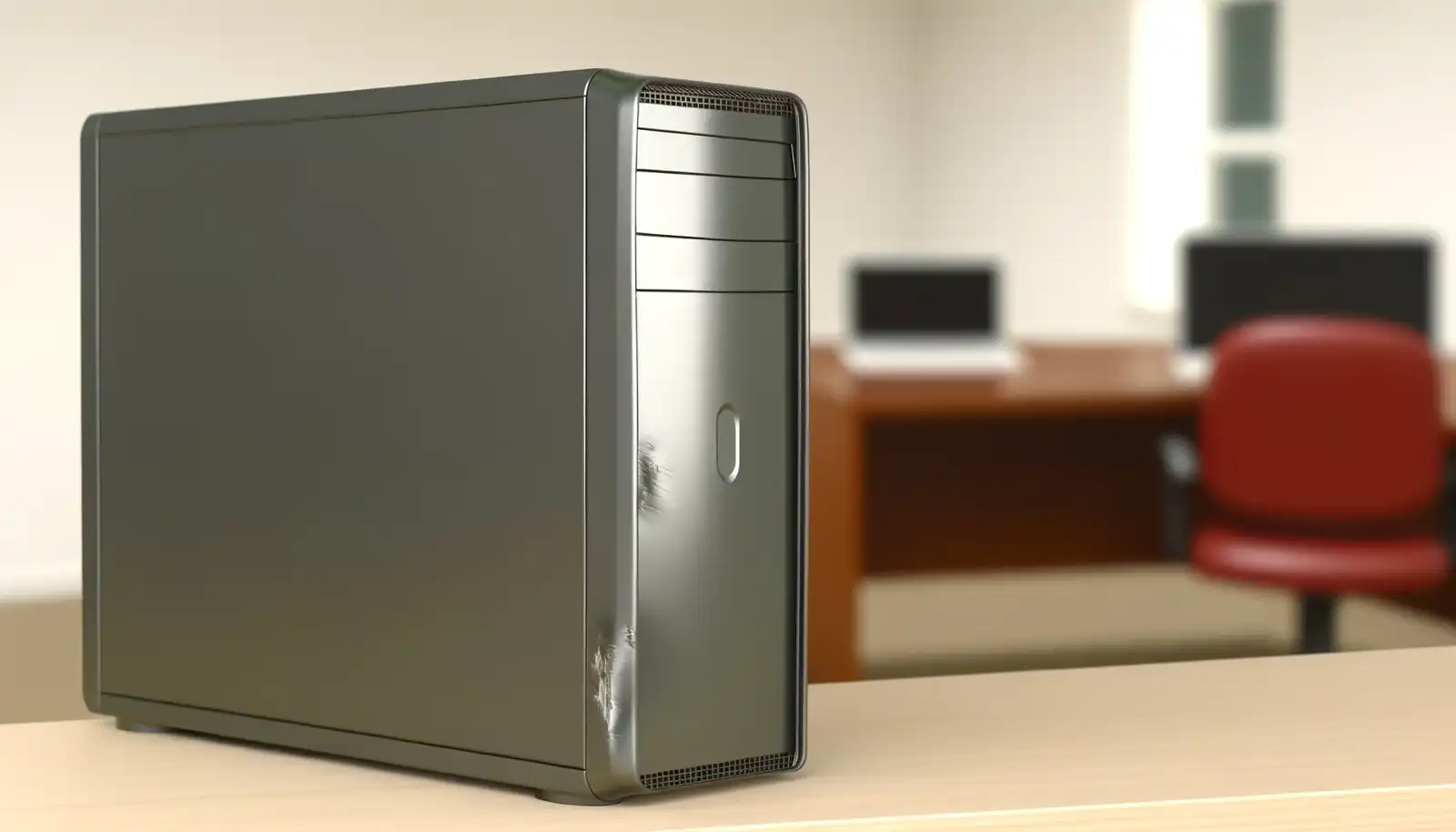
Before beginning any refurbishment, you should evaluate the PC’s state. You can find any physical damage or missing components that need to be fixed with the aid of this preliminary inspection.
Initial Inspection:
- Check for physical damage such as dents, cracks, or missing components. If a PC is damaged or does not include the components listed at the time of purchase, take pictures of the damage or missing parts and return the computer immediately.
- Ensure the PC has all necessary components: CPU, RAM, hard drive, motherboard, power supply, and case.
- Verify if the power supply and other essential components are functional.
Gather Tools
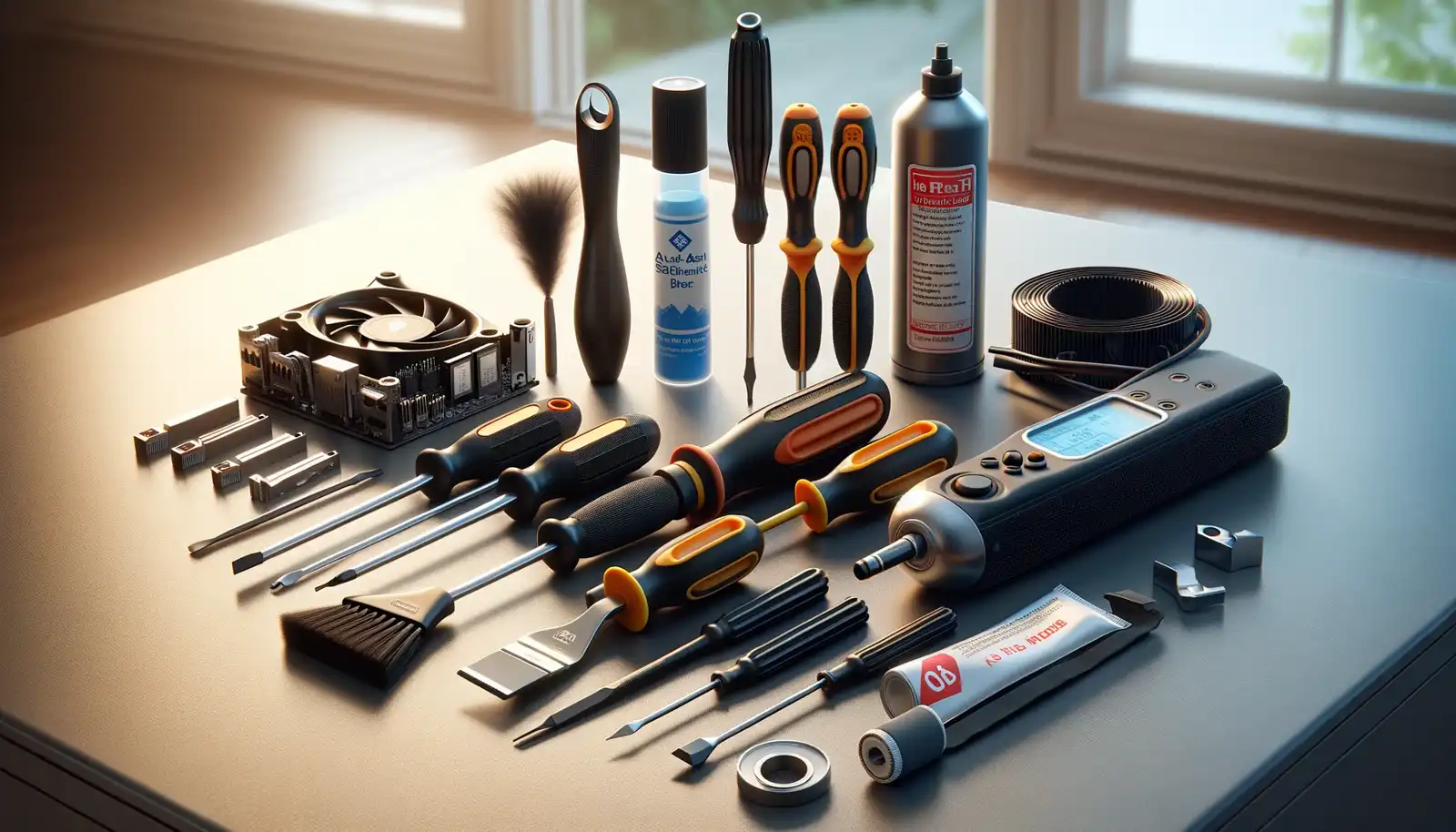
Having the appropriate equipment on hand is essential to a successful renovation. The suggested equipment you’ll need to get going is listed below.
Recommended Tools:
- Screwdrivers (Phillips and flat-head)
- Antistatic wrist strap
- Thermal paste
- Electric air duster (preferred) or compressed air canister
- Brush with a long thin handle and stiff bristles (artist brush or a cheap watercolor brush)
- Cleaning wipes or cloth

Gather Supplies
You’ll also need various supplies, such as updated and replacement parts, in addition to the tools. The items you’ll need are listed below.
Recommended Supplies:
- Replacement parts (if necessary)
- Upgraded components (RAM, SSD, GPU, hard drives, etc.)
- Operating System installation media on a USB thumb drive, DVD, or both because some devices have issues booting from a USB or DVD drive.
- External storage device if you need to back up existing hard drives before installing the new operating system.
Test the Power Supply
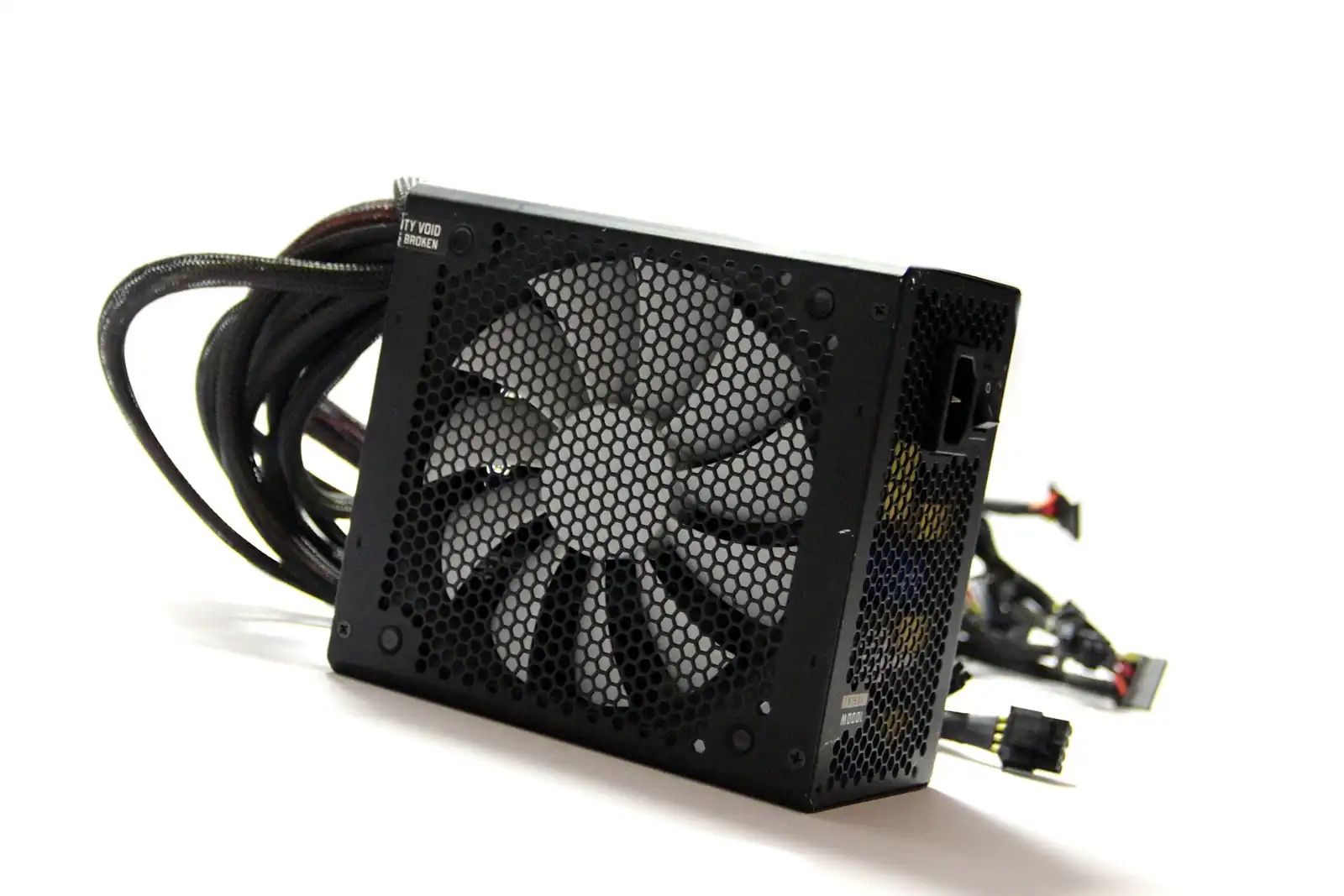
The operation of your PC depends on the power supply unit (PSU). By testing the PSU, you can ensure it provides steady power and determine whether a replacement is required.
Power Supply:
- Test the power supply unit (PSU) to ensure it delivers stable power and replace it if necessary. If the PSU shows ANY signs of corrosion or damage, please play it safe and replace it.
- If the power supply is not 80+ Bronze or higher, consider replacing it with a Gold or Platinum PSU.
- An 80-plus gold or platinum power supply is highly recommended, especially for home servers, workstations, and other instances where reliability is critical.
Check Motherboard & CPU
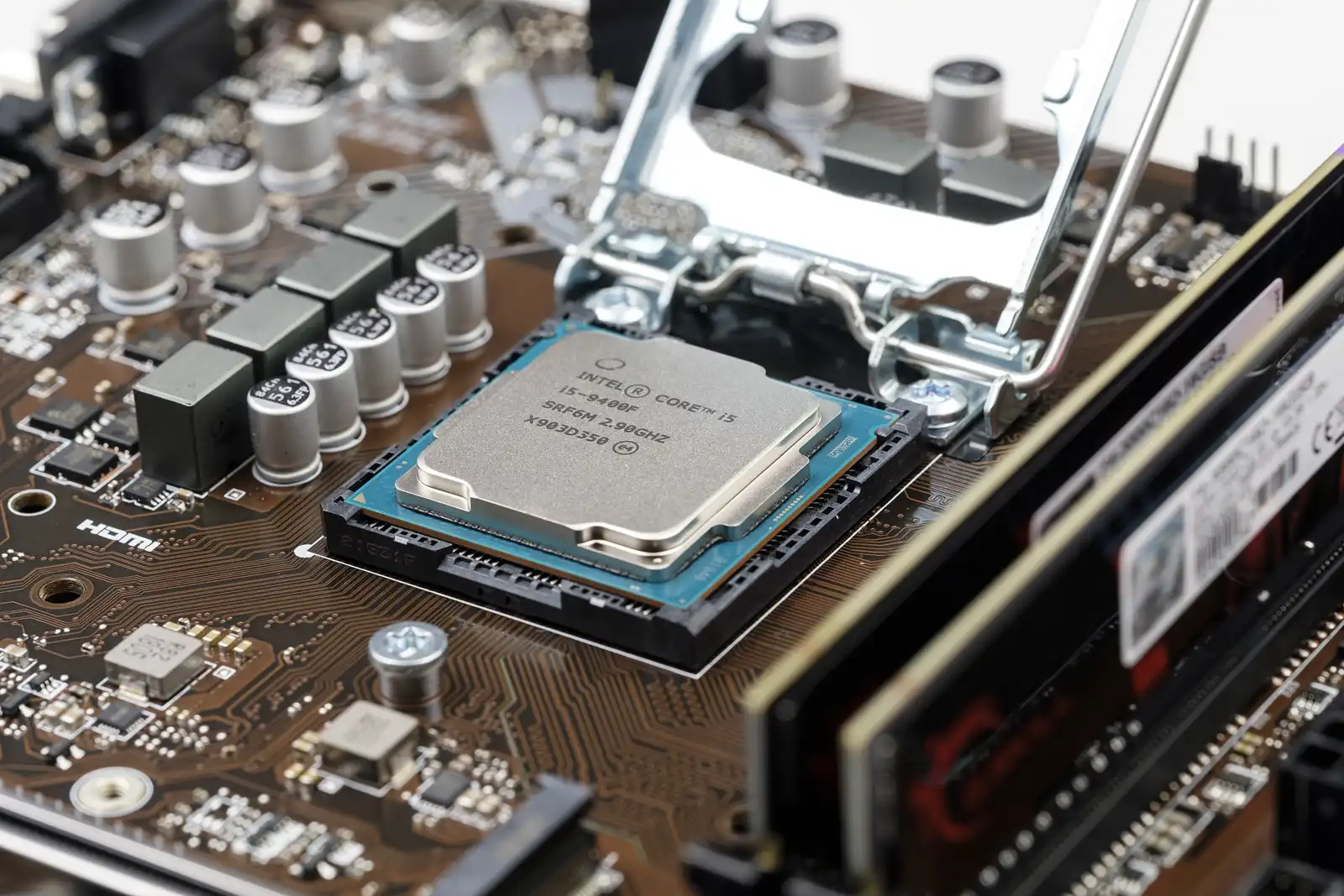
It’s critical to check for corrosion and damage on the motherboard and CPU. Make sure they are in good shape before moving on with any upgrades.
Motherboard and CPU:
- Check for signs of damage or corrosion. DO NOT use a damaged or corroded motherboard; it is a fire risk and may damage other components, which will cost you more money in the long run.
- If you plan to upgrade the CPU, verify that it is compatible with the motherboard.
Recommended Website: CPU-Upgrade
Recommended internet search example: Xeon e5-1607 V2 CPU upgrade list
Check the Memory (RAM)
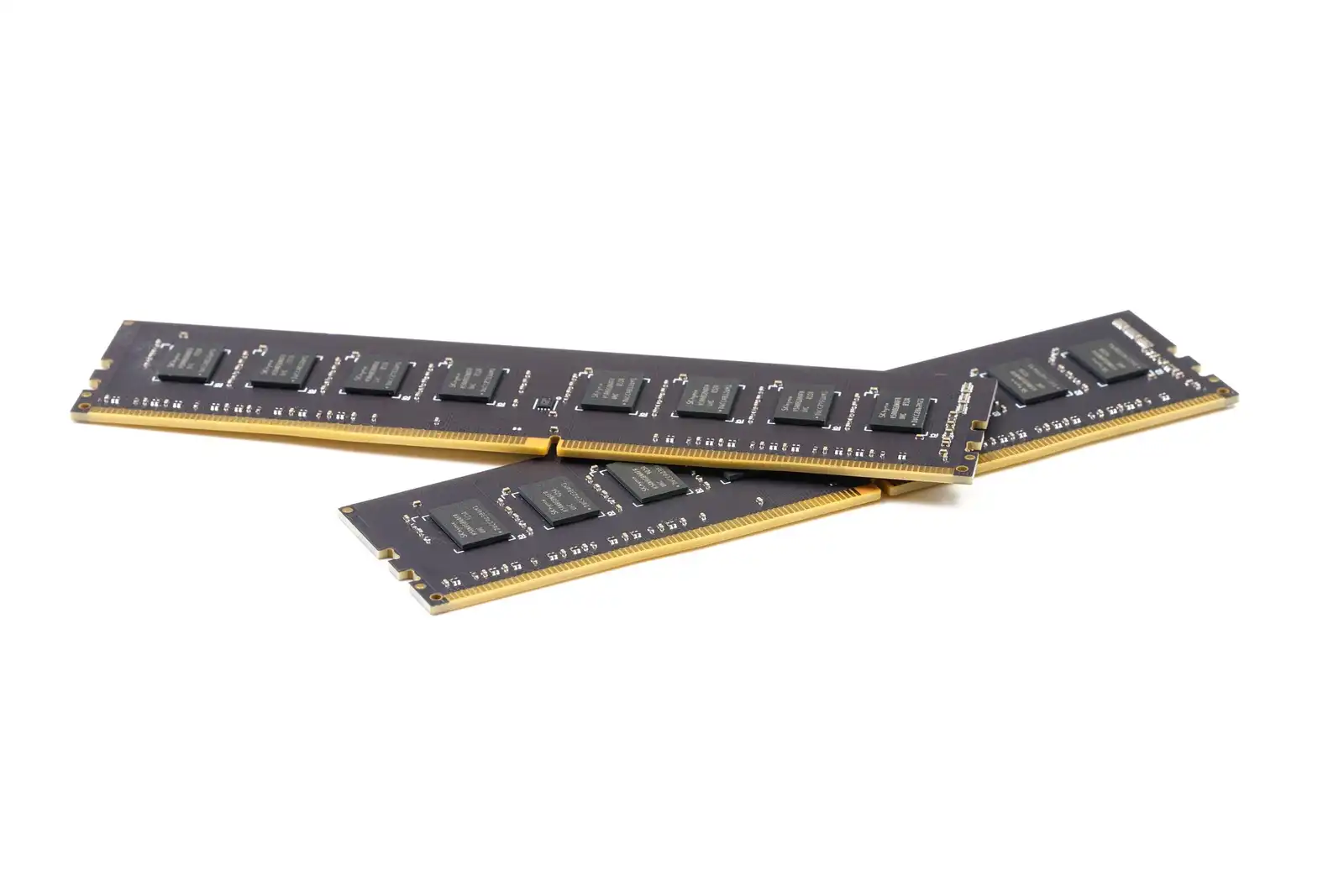
Your computer’s performance can be greatly enhanced by properly maintaining and updating its RAM. Verify that the RAM is installed correctly and is compatible.
Verify memory Compatibility:
- Ensure the memory is inserted in the correct slots in matching pairs. Inserting memory into the correct slots is crucial for optimizing performance and ensuring stability, especially in workstations. Proper placement often enables dual or quad-channel memory configurations, significantly enhancing data throughput and processing speed. Incorrectly placed memory can lead to reduced performance, system instability, or failure to boot.
- Upgrade if the current amount is insufficient for modern use. A minimum of 8GB is recommended, but 16GB is better for optimal performance, especially for gaming.
Test Storage Devices
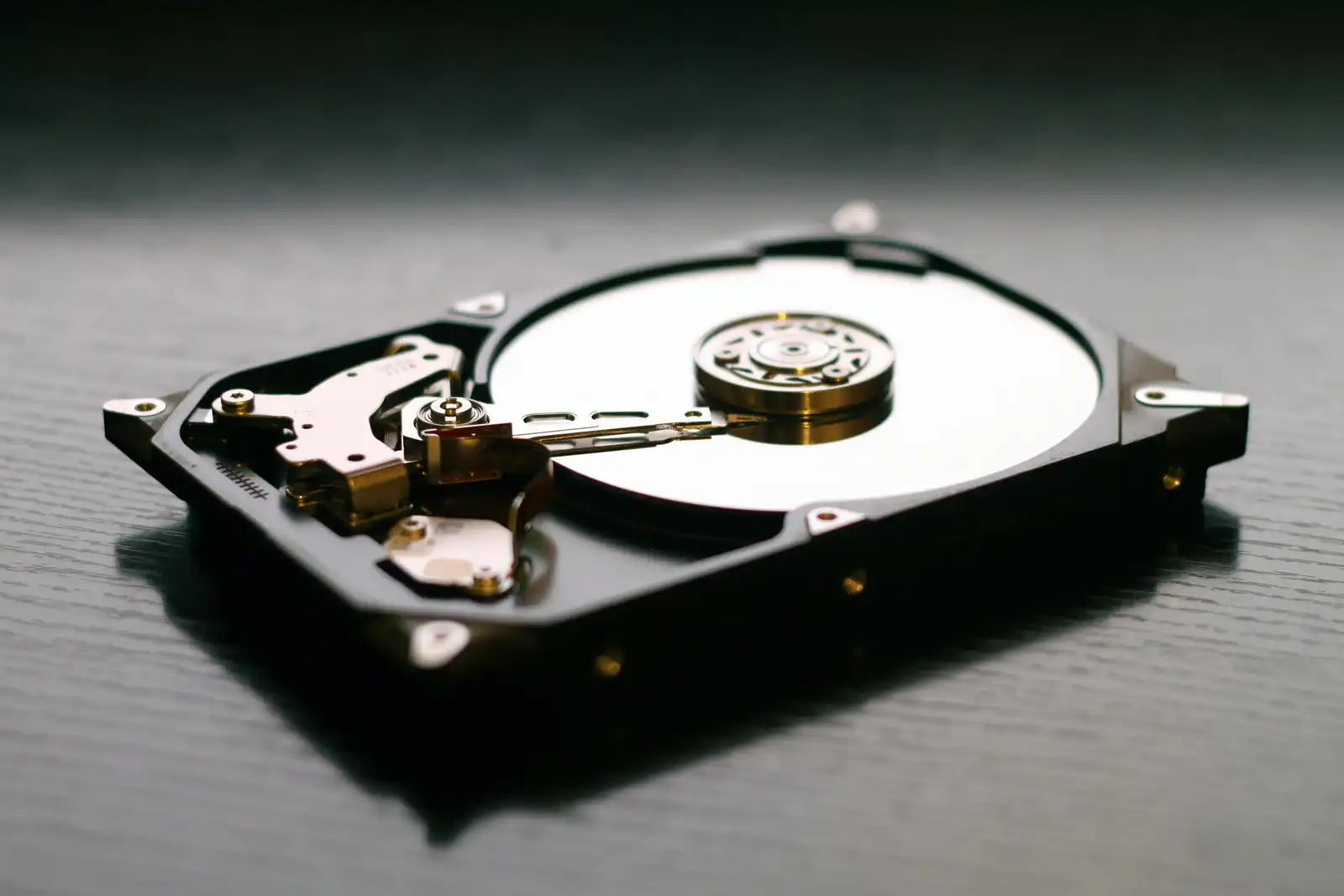
It’s important to check the SSD and hard drive health to guarantee consistent storage performance. To improve efficiency, think about moving the operating system to an SSD.
HHD and SSD Hard Drives:
- Check the health of hard drives or SSDs using diagnostic software like CrystalDiskInfo. Old or used hard drives or SSDs may have issues, so always test them to avoid headaches like lost data or downtime.
- If the current operating system is installed on an HDD, we highly recommend migrating the OS to an SSD for better performance. However, don’t throw out the HDD; they are great storage drives because they are much cheaper per TB and fast enough for use as storage drives.
Test Graphics Card
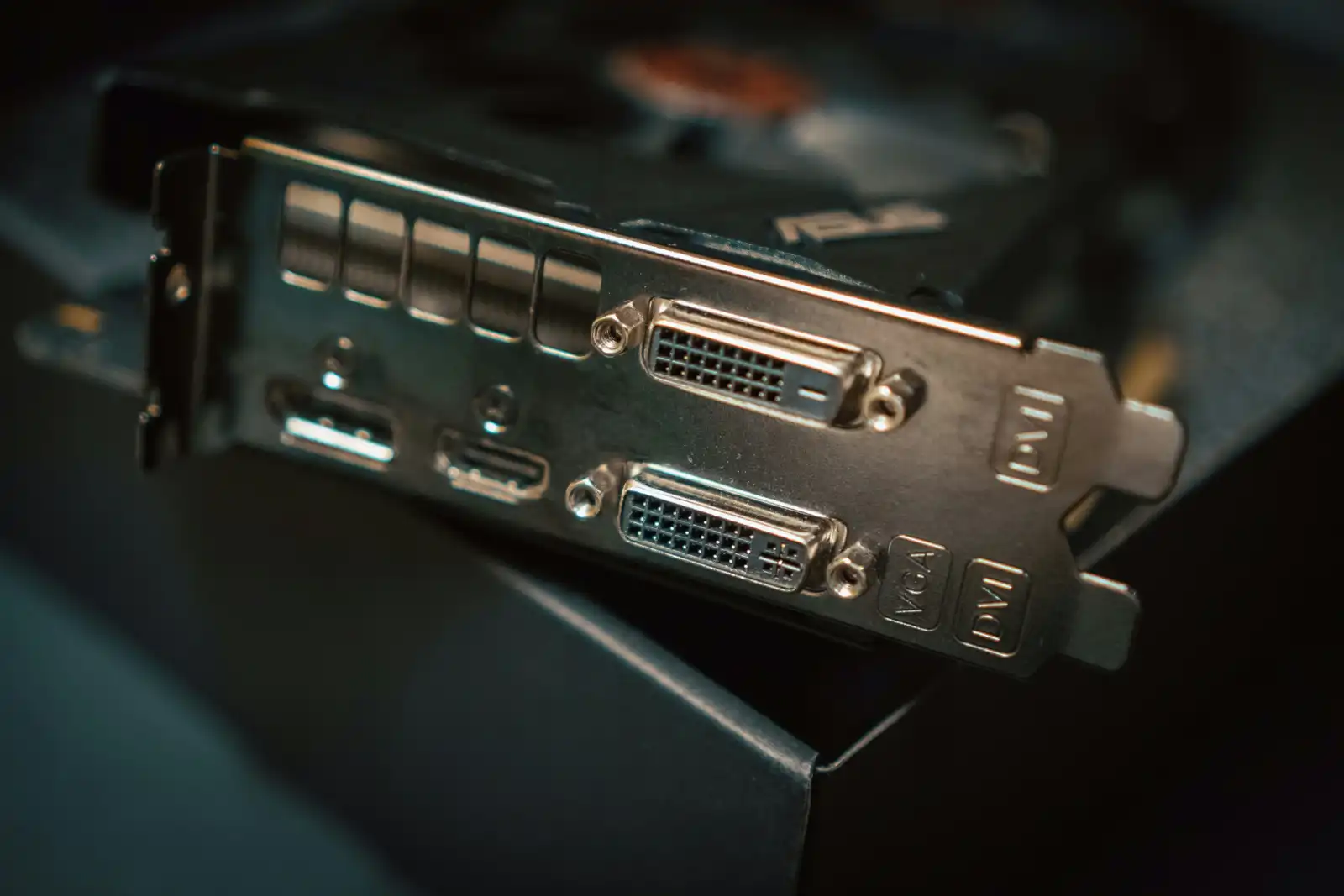
Whether integrated or not, verifying the GPU ensures its proper operation. Upgrading the graphics card can improve your PC’s performance, particularly for jobs requiring heavy graphics and gaming.
Test GPU if Included or Add a Dedicated Graphics Card if Needed or Required:
- Test the GPU for proper functionality and replace or upgrade if needed for better performance.
- If you are gaming, you need to find a GPU suitable for the games you play and the CPU in your system to avoid creating a CPU bottleneck. You can check the system requirements for games by visiting their websites.
- Older and cheaper AMD, Nvidia GeForce, or Quadro cards are excellent options if you don’t play modern games or simply need a system to browse the internet, watch videos, check email, and run productivity software like Microsoft Word.
Reassemble & Upgrade
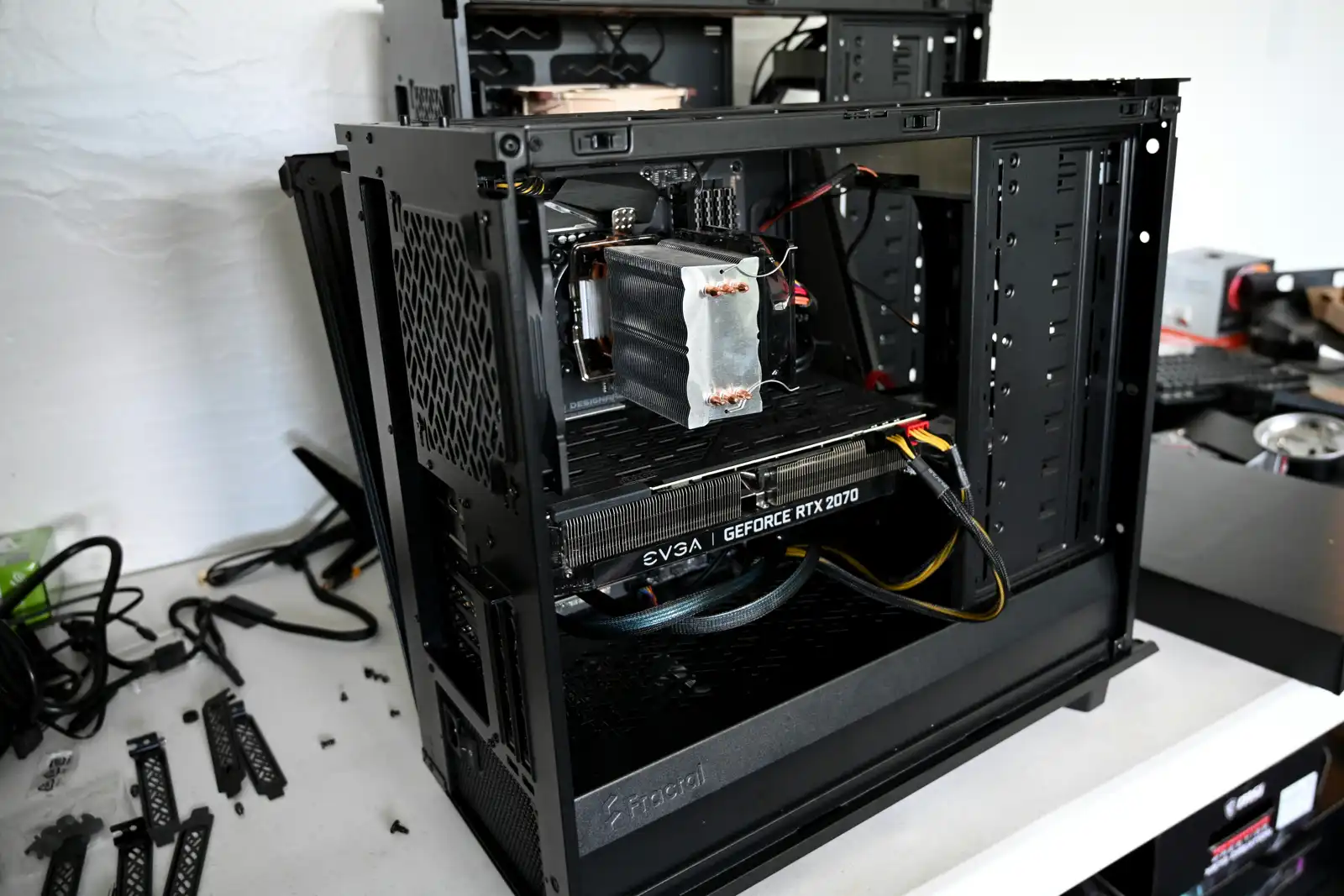
Make sure all connections are secure before carefully reinstalling every component. Enhancing components like RAM and SSDs can greatly improve the speed of your PC.
Reinstall or Upgrade:
- Carefully reinstall all components.
- Ensure all connections are secure.
- Double-check for any loose screws or components.
- Install additional RAM if needed.
- Replace the hard drive with an SSD for faster boot times and performance.
- Add or upgrade the graphics card if the PC will be used for gaming or graphic-intensive tasks like editing images or rendering videos.
Install Operating System
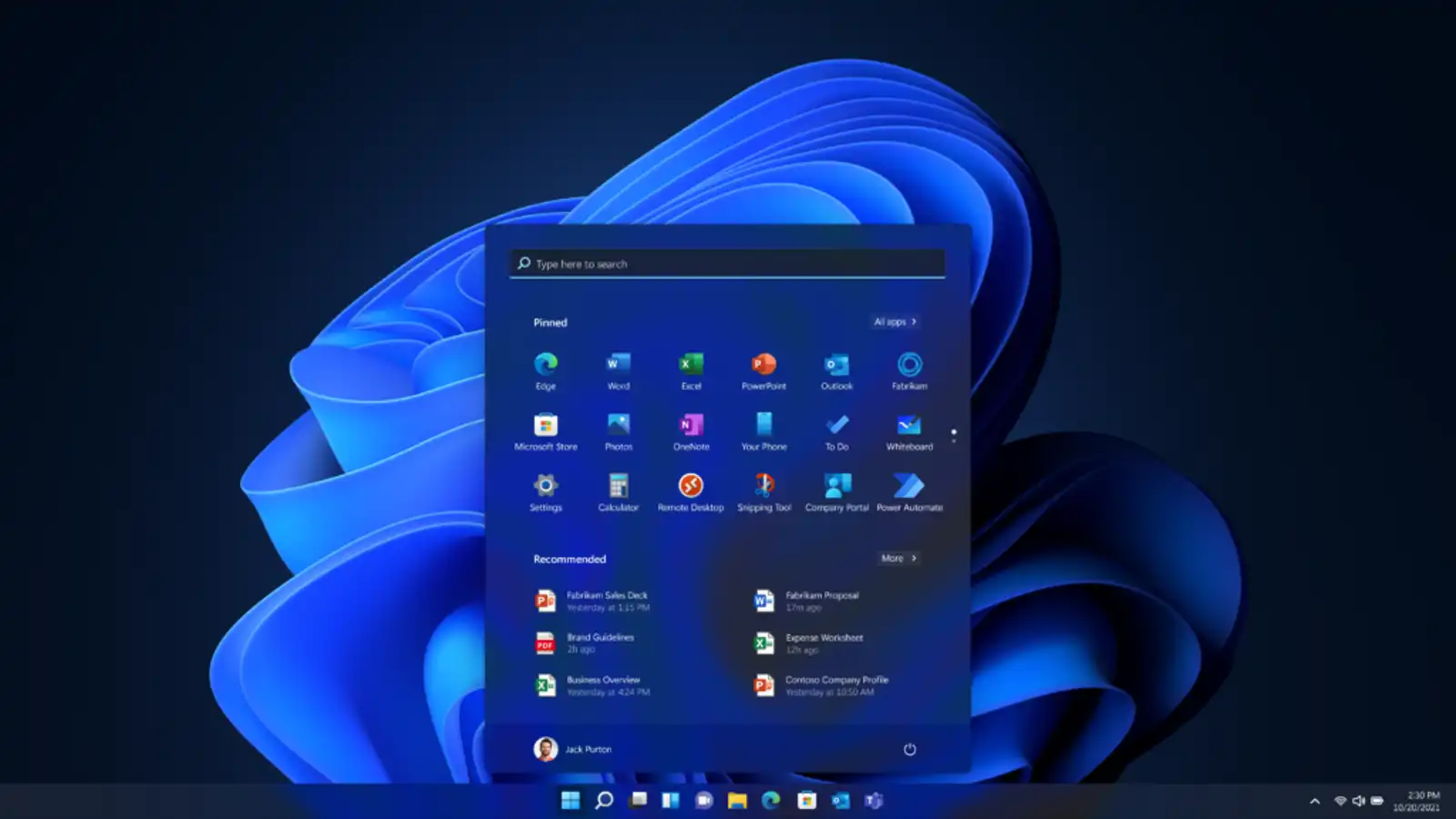
One essential step in refurbishing a PC is installing the operating system. Before beginning the installation procedure, make sure you have a backup of any crucial data.
Backup Data if Needed BEFORE Installing the Operating System:
- Backup Old Data: If you have any important data on the old drive, back it up to an external storage device to keep it safe during the PC refurbishment process.
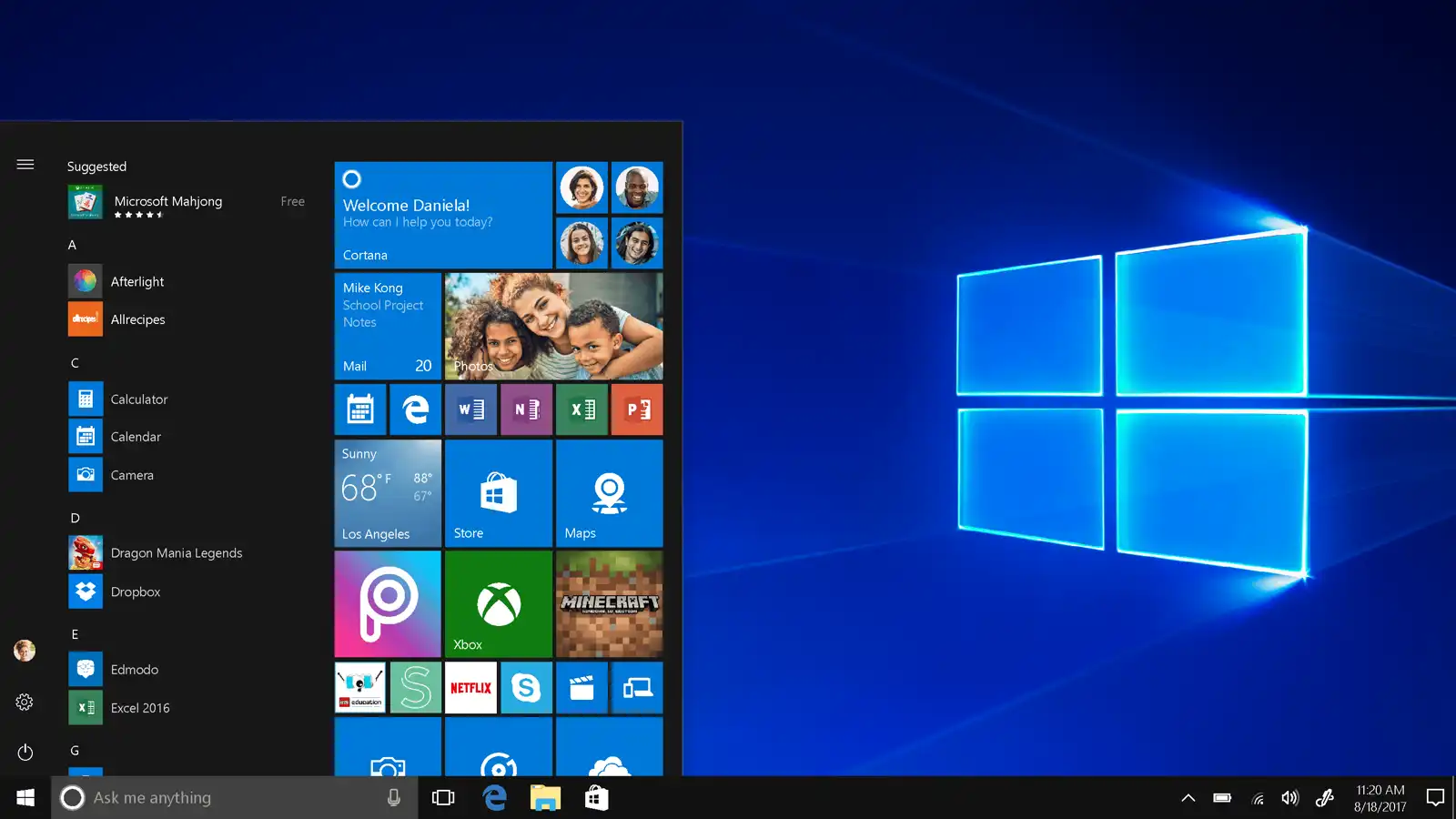
- Install the OS: Install the operating system with a bootable USB drive or DVD installation media. Follow the on-screen instructions to complete the installation. Search YouTube for how-to videos.
Install Drivers and Updates
Maintaining your PC’s stability and security requires updating both the operating system and drivers. Update your drivers by visiting the manufacturer’s website.
Update the OS and Drivers:
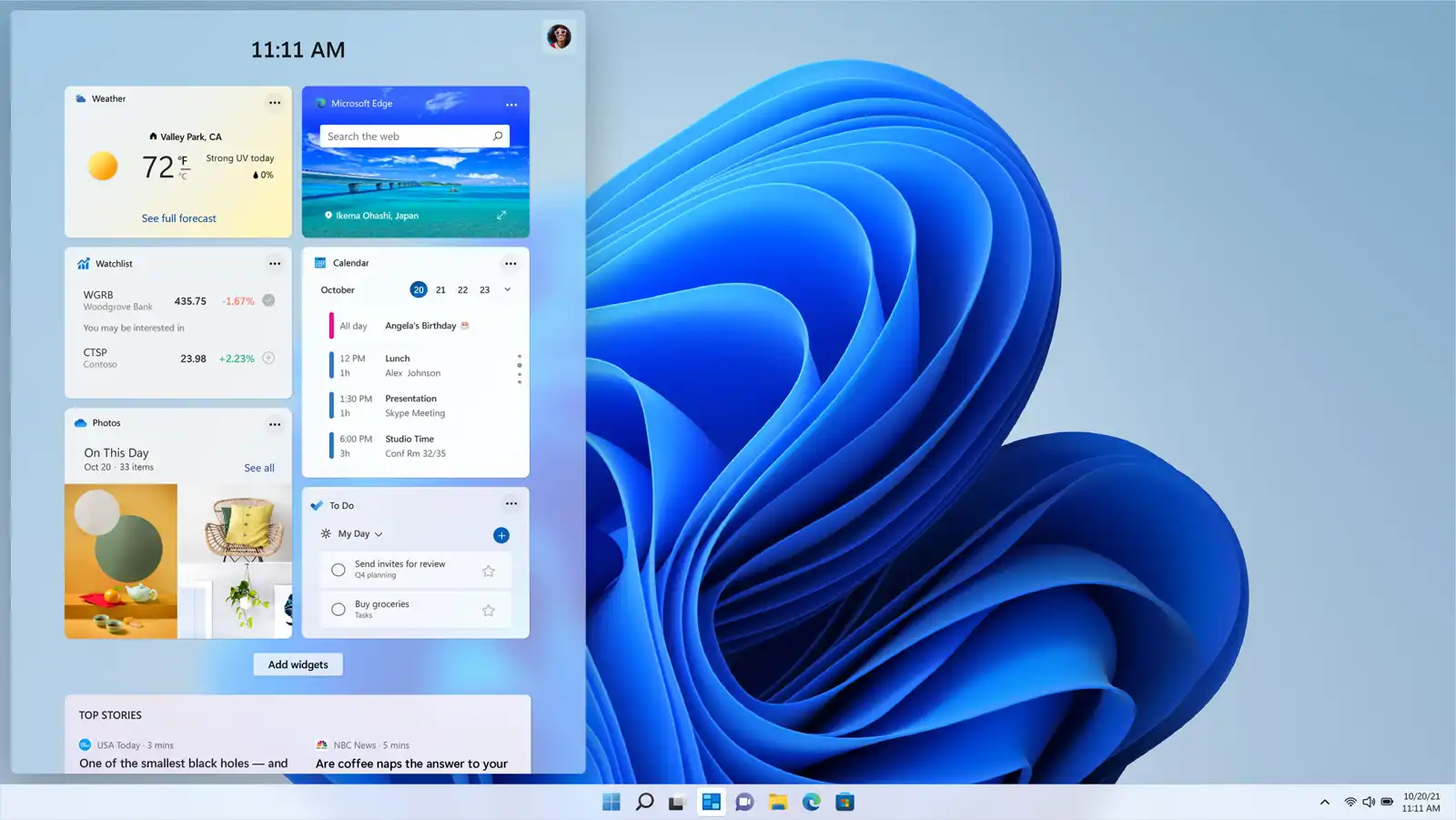
- Update Drivers: Download and install the latest drivers for the motherboard, GPU, and other components from their respective manufacturer websites. Many of the drivers can be installed in the Windows update feature (optional updates).
- Update Operating System: Install the latest OS updates for your Windows, Linux, or Apple device and all patches to ensure the system is secure and up to date.
Install Essential Software
Installing productivity and antivirus software gets your computer ready for regular use. Make sure the software you download is from reputable sources.
Purchase and Download Software from Trusted Sources:
- Security: Install antivirus software to protect against malware and viruses.
- Utilities: Install necessary utilities such as a web browser, file compression tools, and media players.
- Productivity: Install productivity software like Microsoft Office or free alternatives such as LibreOffice.
Testing and Final Checks
Run stress and performance tests to ensure your refurbished PC is stable and operating at peak efficiency. Keeping an eye on the temperature promotes system health.
System Performance & Stability:
- Recommended Software: HWiNFO, CrystalDiskInfo, CPU-Z, and GPU-Z.
- Performance Testing: Run performance tests to ensure the PC is running optimally. Use benchmarking tools to check CPU, GPU, and overall system performance.
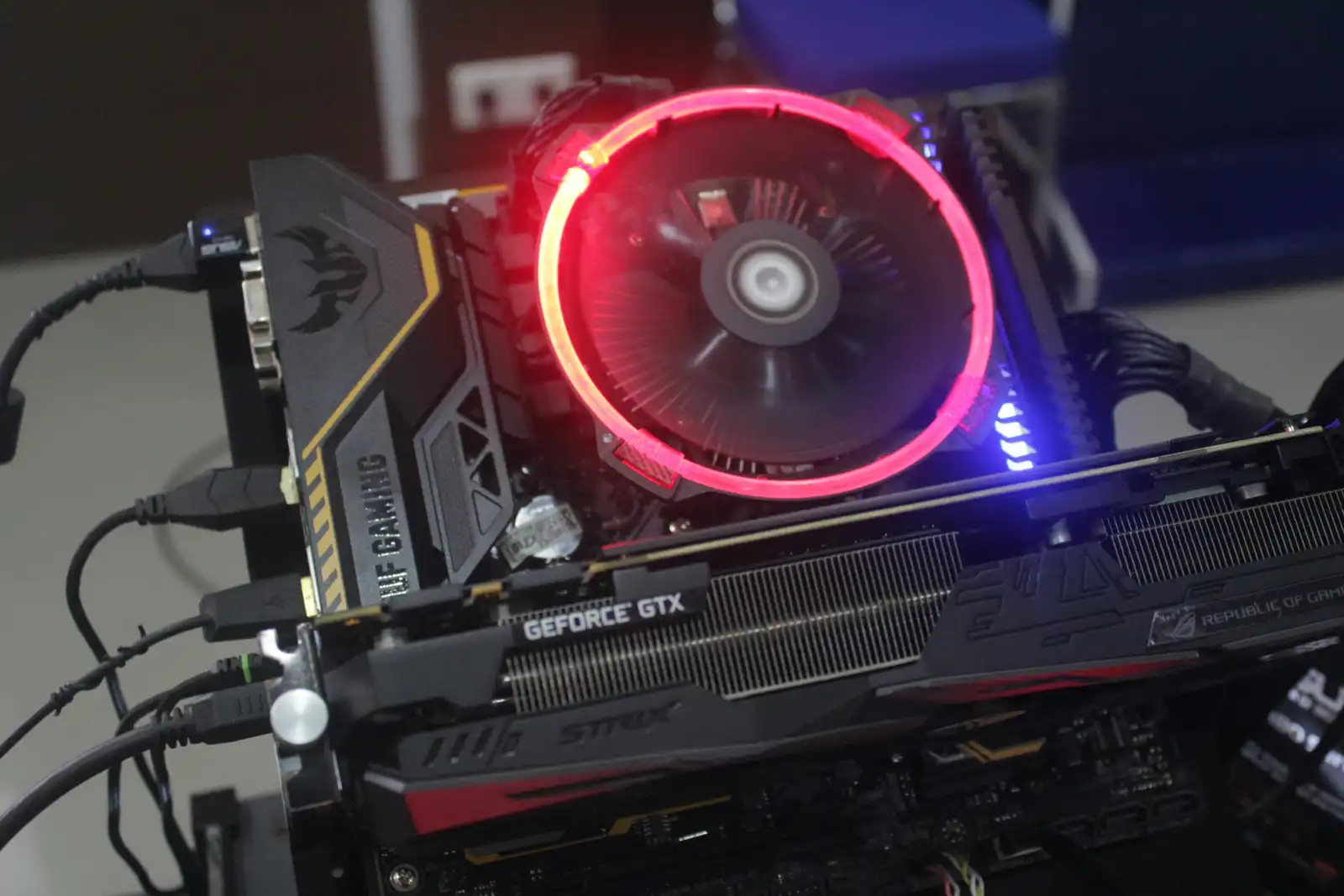
- Stability: Test the system for stability by running CPU and GPU stress tests. Monitor temperatures to ensure the system stays cool under load.
Final Touches for Refurbishing a PC
Cable organization and final cleaning of the PC guarantee that it works and looks good. To provide peace of mind, double-check everything.
System Performance & Stability:
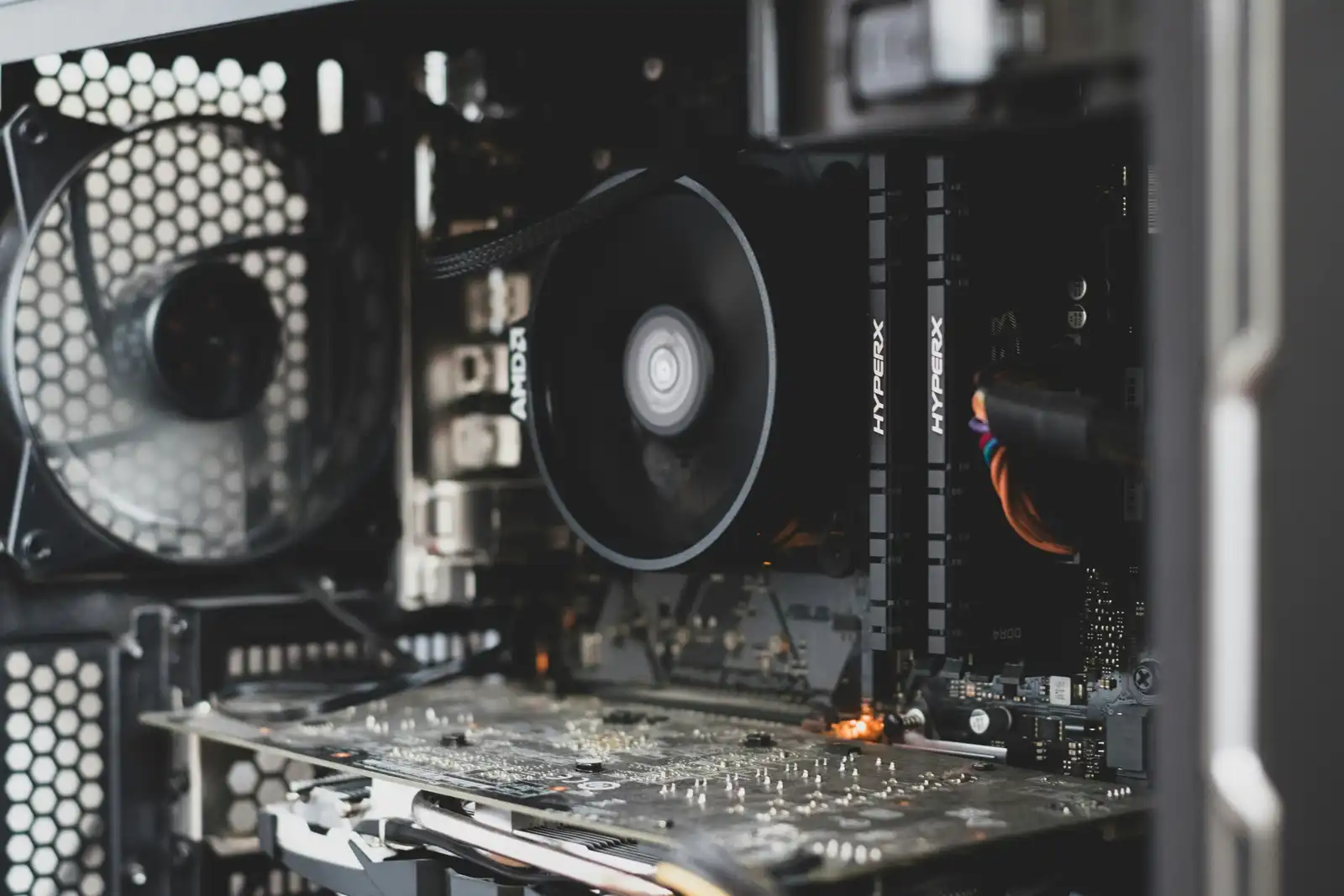
- Cable Management: Organize and secure all cables inside the case to improve airflow and aesthetics and ensure they don’t get caught up in fans.
- Final Cleaning: Give the exterior a final clean. Ensure all ports and connectors are corrosion and dust-free.
- Final Inspection: CHECK EVERYTHING one final time for peace of mind.