Upgrading your GPU can significantly enhance your computer’s performance, especially if you are into video editing, gaming, or graphic design. This article will guide you through the process of upgrading the graphics card in a workstation PC, offering practical tips and insights for a successful upgrade.
Table of Contents
Watch My YouTube Video and Learn How to Upgrade Your Existing Graphics Card (GPU)
Why Upgrade Your GPU?
Changing your current Graphics Card (GPU) will revitalize your PC. This can translate to better performance in graphic design, light video editing, and even running programs like OBS Studio on a workstation PC. Your whole computing experience will improve if you replace an older GPU, such as the GTX 960, with a newer GTX 1060 since you get more memory and improved speed.
If you are interested in additional upgrades to your PC or workstation, check out my article on Upgrading a Dell Precision 5810 Workstation on a Budget, which offers helpful tips and a step by step guide that will apply to most computers.

PNY Geforce GTX 1060 6GB Graphics Card
Choosing a New GPU
Think on the performance improvements and system compatibility of your new GPU choice. Here, switching from a GTX 960 to a GTX 1060 offers an additional gigabytes of RAM and a modest performance improvement. The GTX 1060 comes in several memory configurations; the 6GB variant provides more significant gains for video editing chores than the 3GB model.
Preparing for the Upgrade
Before starting the upgrade, ensure you have the necessary tools and components. Here’s a quick checklist:
- New GPU (e.g., GTX 1060)
- Screwdriver
- Anti-static wrist strap (optional but recommended)
It’s also important to consider the power requirements of the new GPU and ensure your power supply can handle it. Most workstation PCs have a 6-pin and a 6+2 pin connector, which should be compatible with most mid-range GPUs.
Installing the New GPU
Follow these steps to install your new graphics card:
- Turn off your computer and unplug all cables.
- Open the case by removing the side panel. Many workstation PCs have tool-less cases, making this step straightforward.
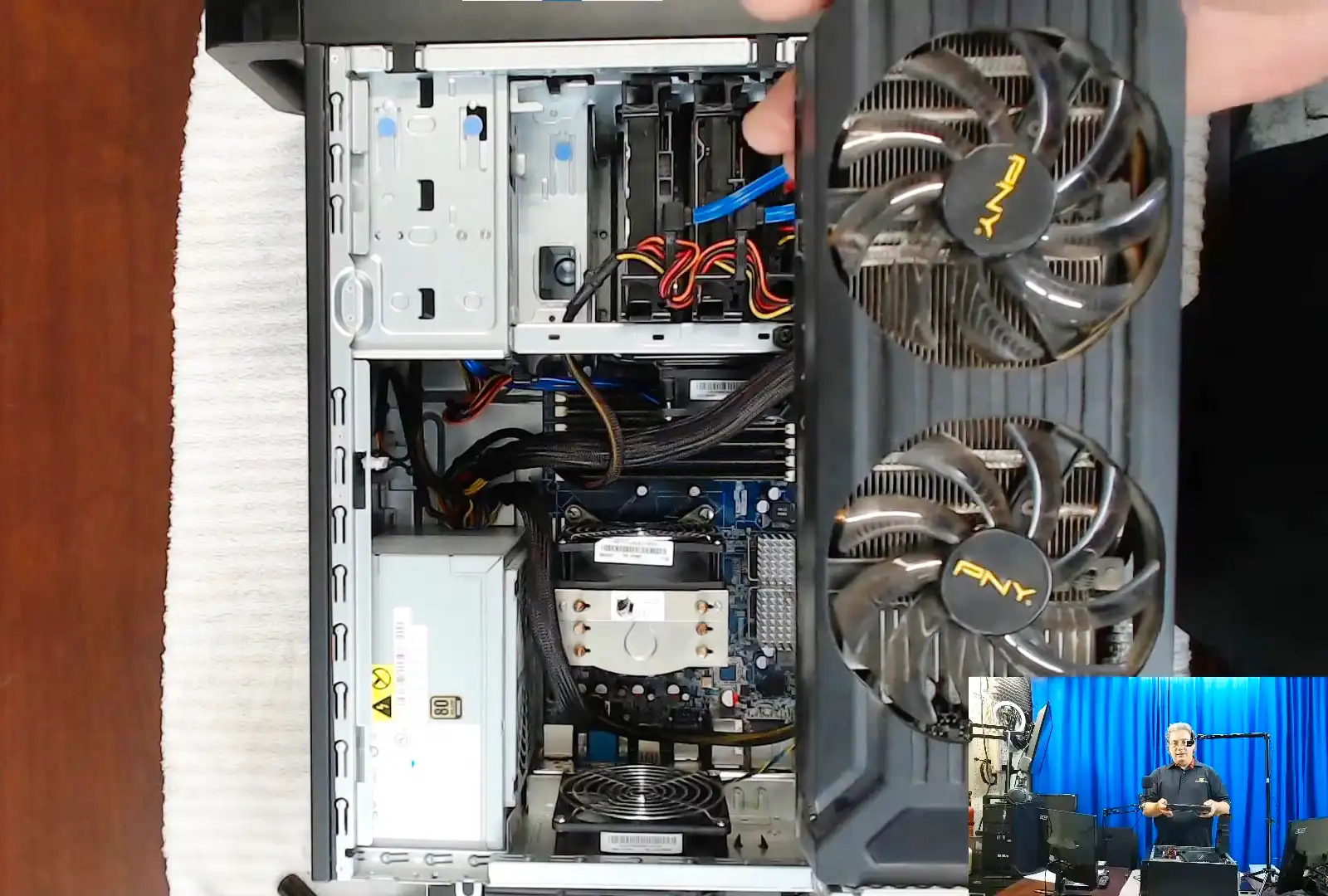
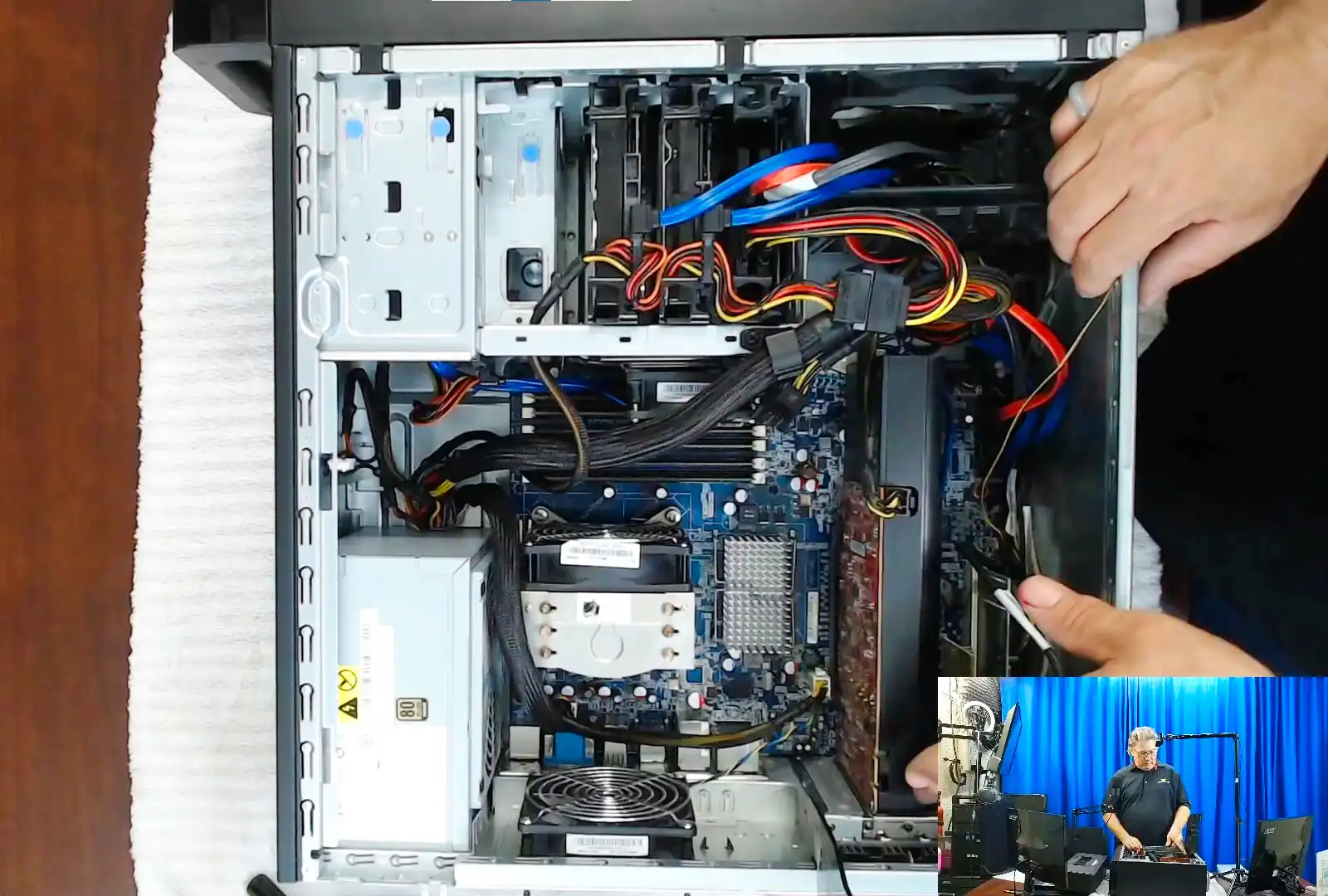
- Locate the old GPU and carefully release the retention tab. Gently pull the card out of the PCIe slot.
- Insert the new GPU into the PCIe slot until it clicks into place.
- Connect the necessary power cables to the new GPU.
- Double-check all connections and ensure no cables are obstructing any fans.
- Close the case and reconnect all cables.
For a detailed guide, refer to Installing a Graphics Card or this comprehensive guide on upgrading graphics cards.
Post-Installation Checks
After installing your new GPU, perform a few checks to ensure everything is functioning correctly:
- Turn on your computer and enter the BIOS to verify that the new GPU is recognized.
- Install the latest drivers for your new GPU from the manufacturer’s website.
- Run a benchmarking tool to test the performance of your new GPU and ensure it is operating correctly.
For additional troubleshooting steps, visit graphics card troubleshooting guide.
Conclusion
Particularly for video editing, gaming, and graphic design, upgrading your current graphics card (GPU) will help your computer run it’s best. Following the advice in this article will help you install a new GPU successfully on your workstation PC and experience better performance and efficiency. Remember to routinely monitor the performance of your system and keep the drivers for your graphics card and other hardware up to date to guarantee everything is working as it should.
Check out this GPU Buying Guide for additional information and tips on computer upgrades.