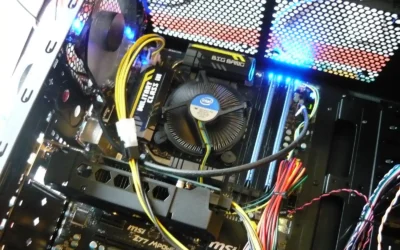
Upgrading your Lenovo ThinkStation S20 workstation can significantly enhance its performance and extend its lifespan. This article will guide you through the process, including adding a better CPU, more memory, an SSD, a hard drive for extra storage, and a new graphics card.
Table of Contents


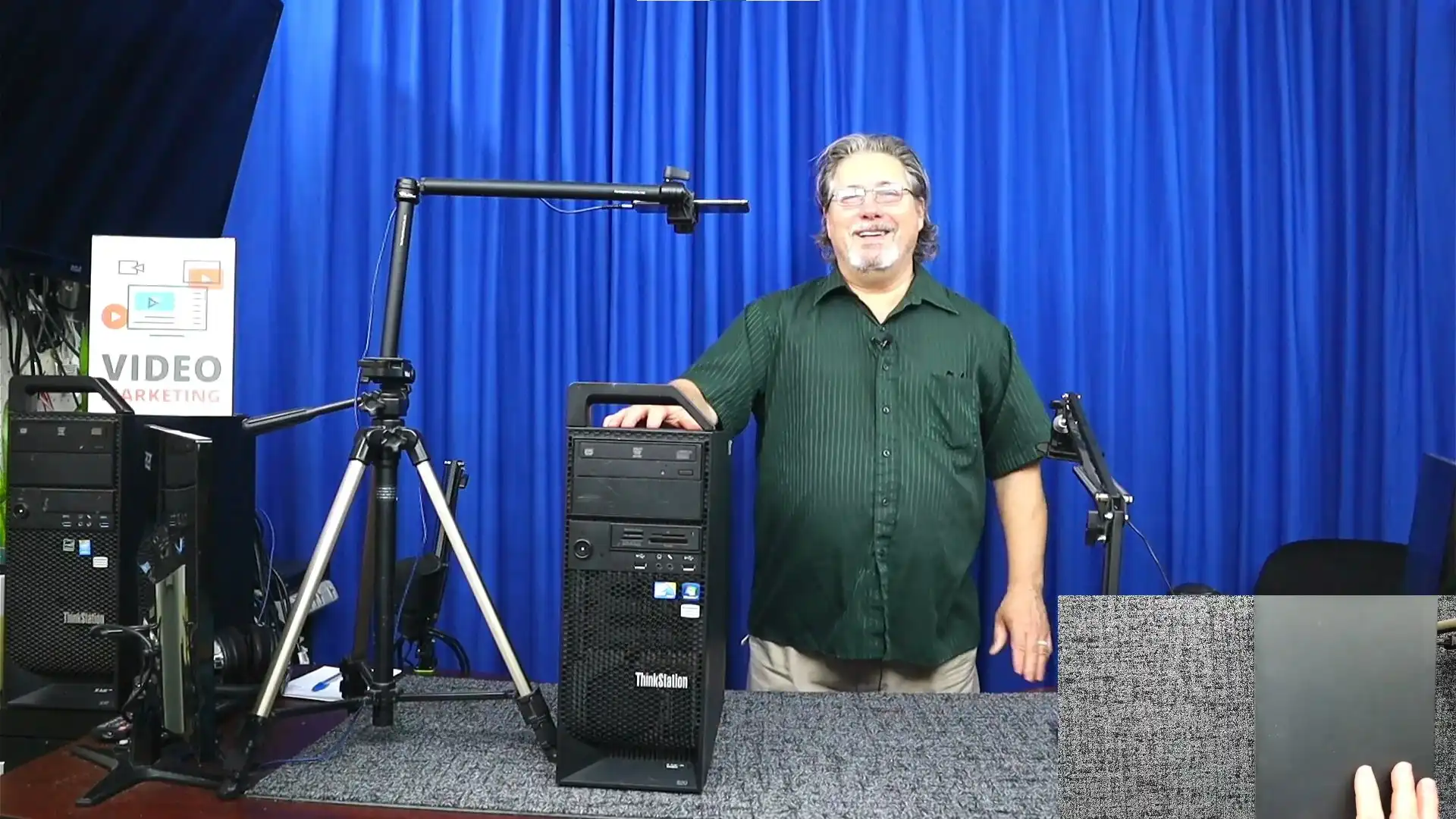
Watch My YouTube Video and Learn How to Upgrade a Lenovo ThinkStation S20 Workstation on a Budget
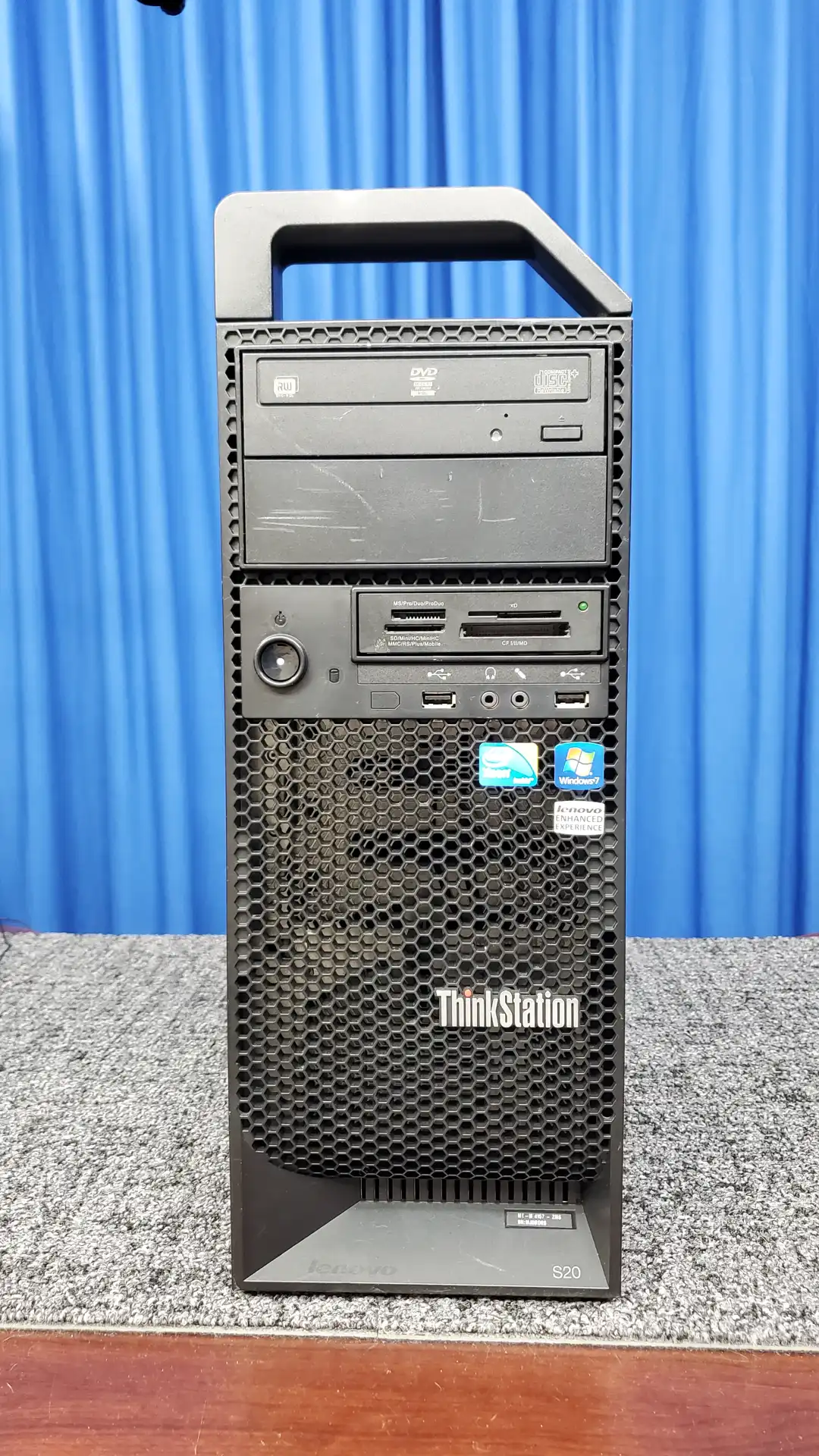
See our newest video to learn the value of a Lenovo ThinkStation S20 Workstation upgrade. This reasonably priced workstation is meant to fit your demands regardless of your interests in technology, graphics design, video editing, or home business ownership.
Workstation Upgrade Specs:
💾 24GB RAM Memory
💻 Intel Xeon 5680 6-core CPU
🔋 120 GB SSD + 500 GB HDD for ample storage
🎨 NVIDIA Quadro 2000 GPU
📀 DVD RW Drive
💳 Card Reader
🖥️ Windows 10 Pro
Watch the video to see how these changes streamline your workflow, increase multitasking, and enable simple handling of demanding jobs. Then, peruse this page for further ideas and doable advice on maximizing your workstation’s performance. Engaging the video and the article will help you fully utilize your Lenovo ThinkStation S20.
Upgrading the CPU
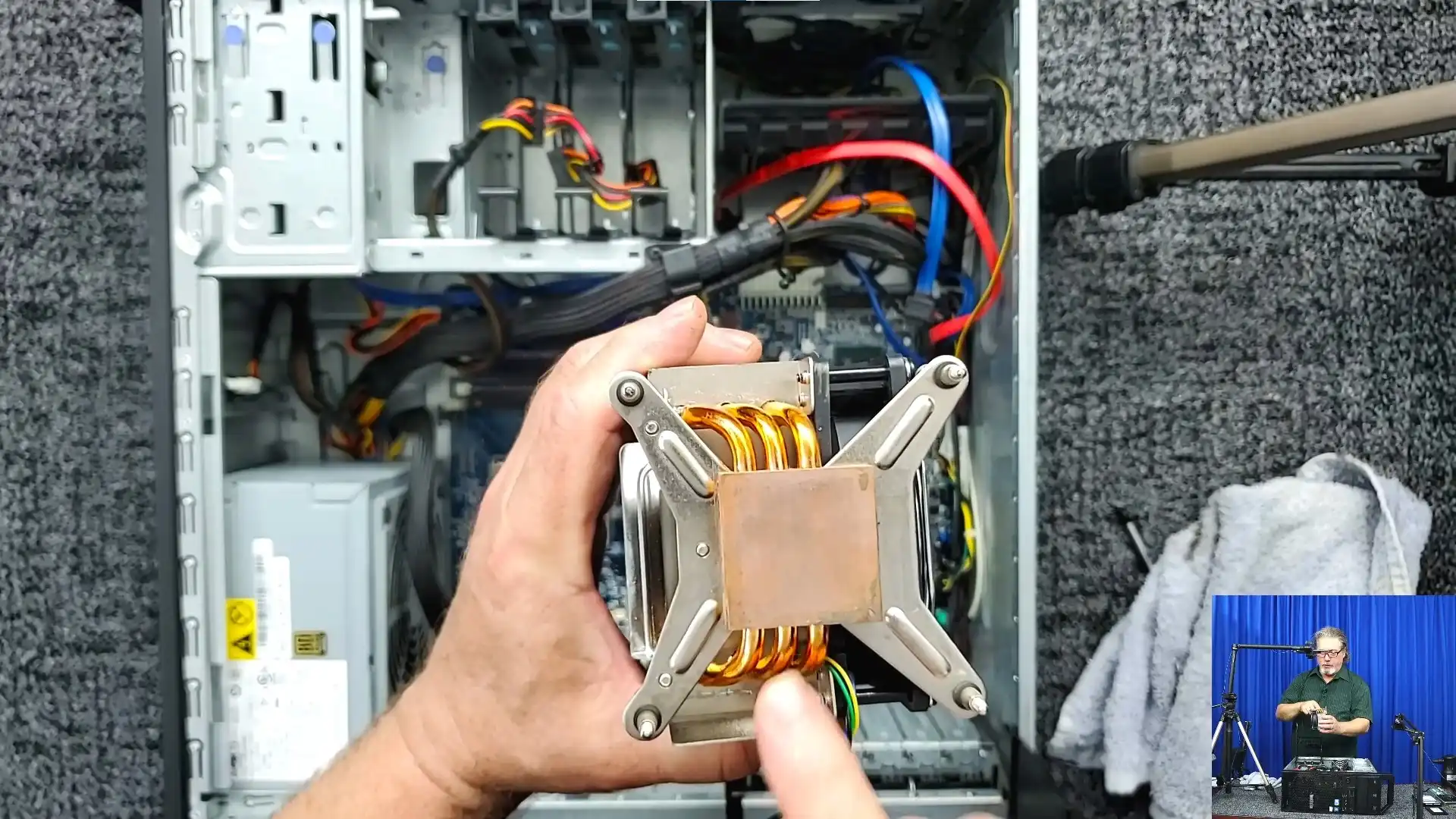
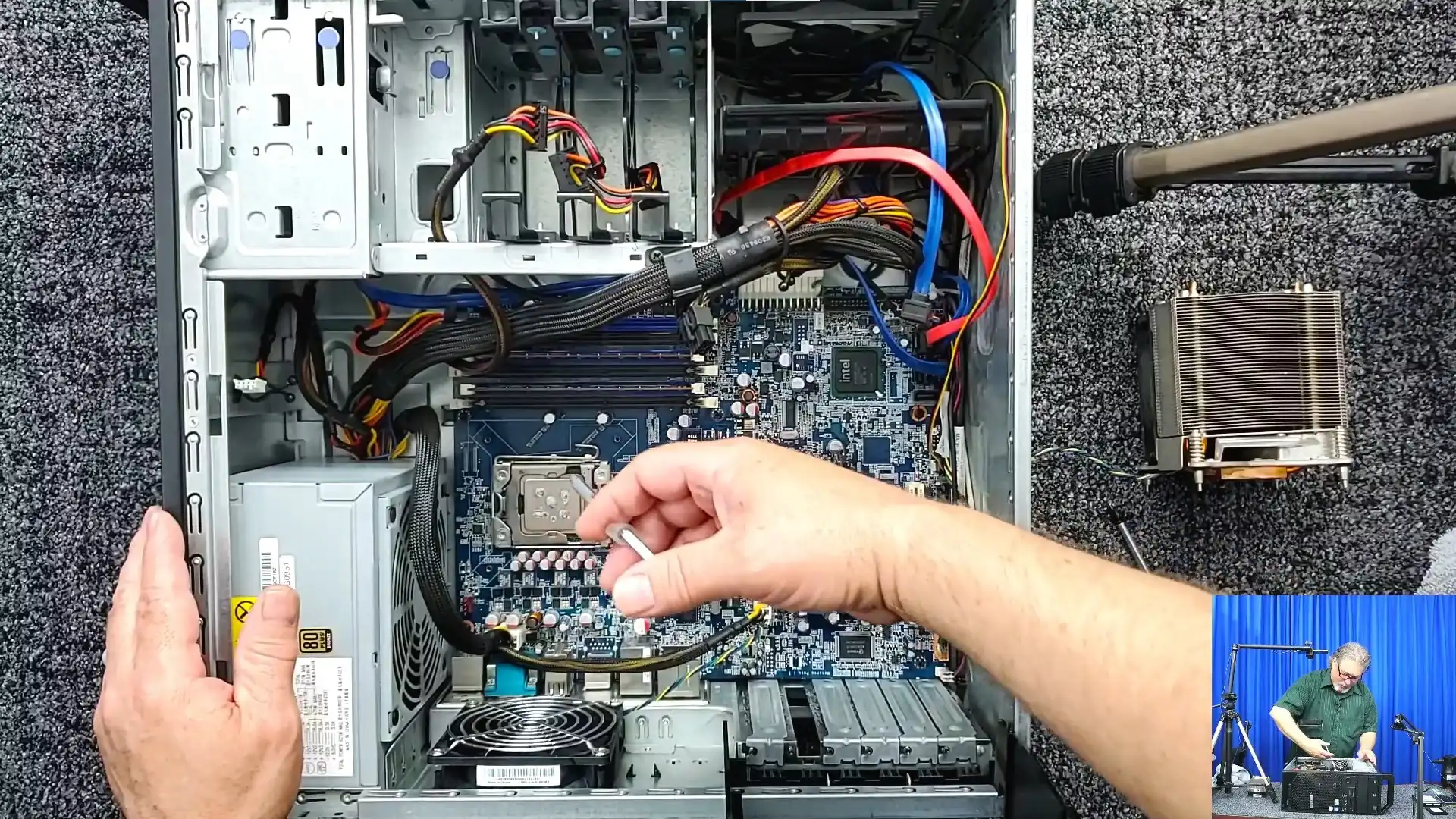
Changing the CPU is the first stage in improving your Lenovo ThinkStation S20. We will replace the current 4-core, 8-thread Xeon W3550 with the 6-core, 12-thread Xeon X5680, which scores much higher in PassMark benchmark tests. See for yourself, check out the results below.
CPU Performance Benchmark Scores
Here’s how you do it:
- Open the case by lifting the handle.
- Locate the CPU cooler and remove it carefully.
- Remove the old CPU and clean off any old thermal paste.
- Install the new CPU, aligning it properly with the slots.
- Apply new thermal paste and reattach the CPU cooler.
For more detailed guidance on choosing and installing CPUs, check out this comprehensive CPU upgrade guide.
Upgrading the Memory
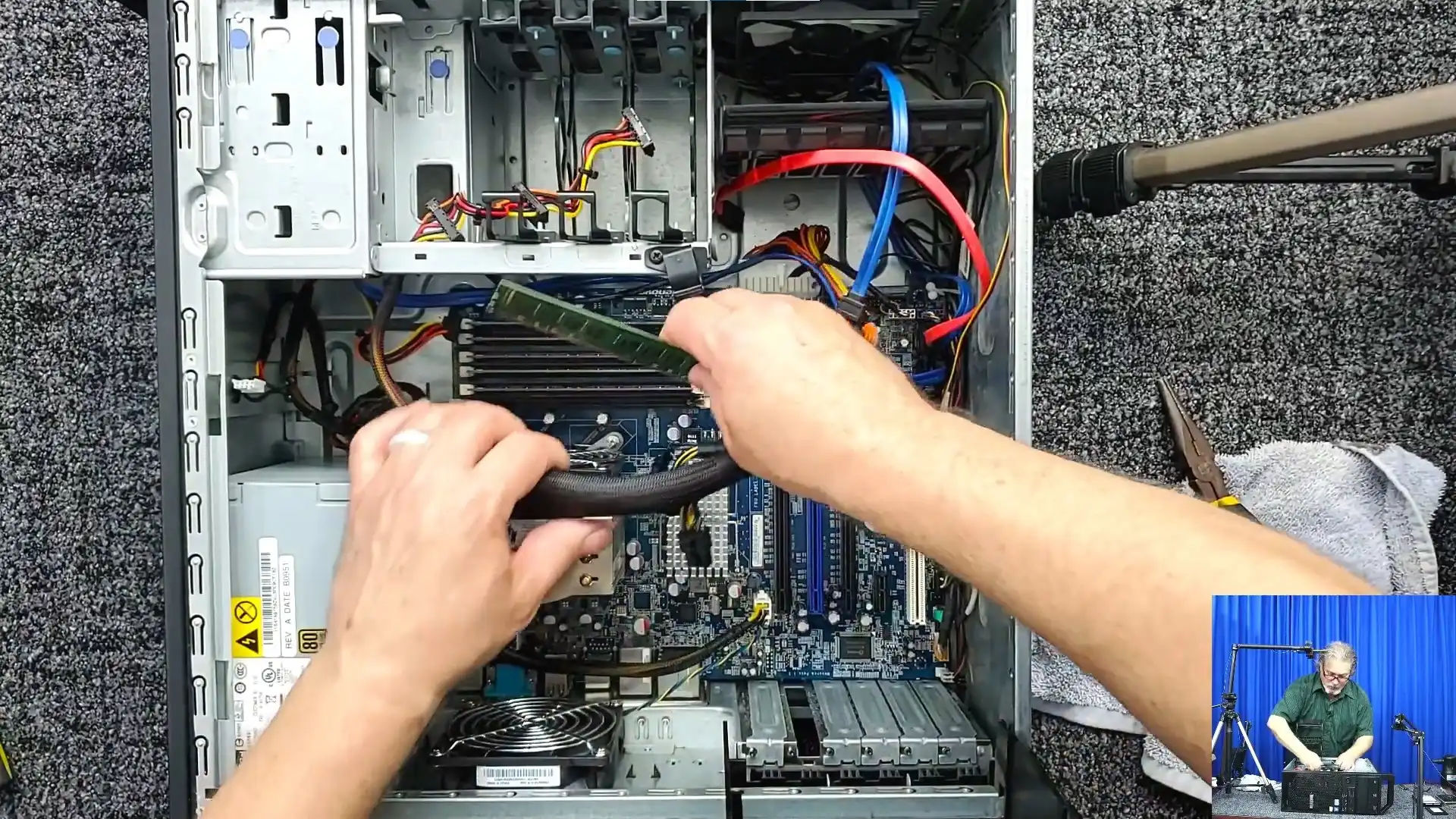
You must upgrade the memory if you want to maximize your workstation. The Lenovo S20’s triple-channel memory allows for at least three memory modules. Six memory modules are installed here for the best performance.
Steps to upgrade memory:
- Identify the six memory slots on the motherboard.
- Install the memory sticks in the blue slots first to enable triple-channel memory.
- Ensure each memory stick clicks into place and the tabs are secured.
For more on the importance of memory upgrades, visit this article on memory upgrades.
Installing a Graphics Card
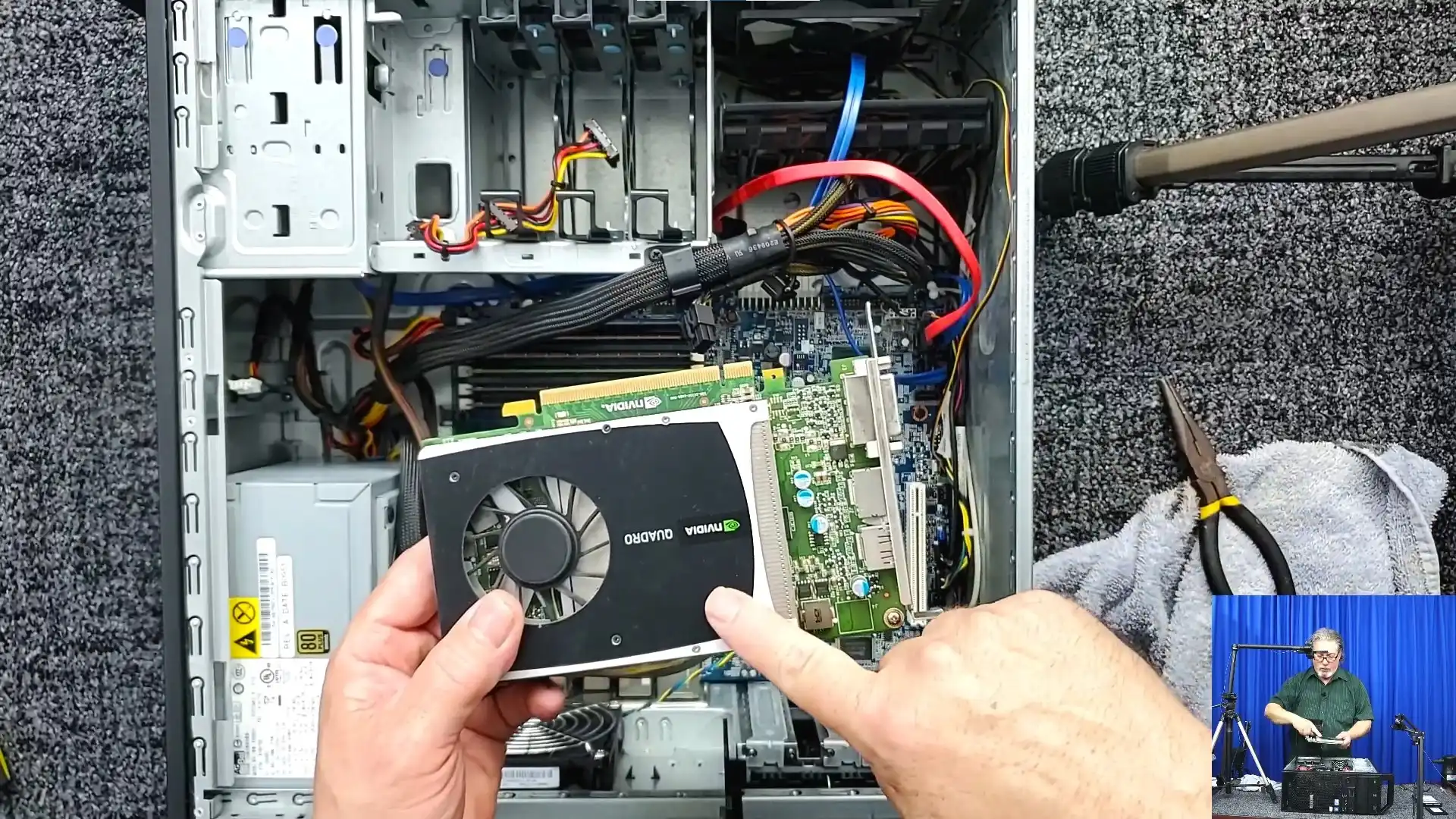
The Lenovo ThinkStation S20 lacks built-in graphics; hence, you must install a standalone graphics card. Although we will use a Quadro 2000 in this guide, you can select a card that meets your requirements and financial constraints.
Follow these steps:
- Locate the PCIe x16 slot on the motherboard.
- Insert the graphics card into the slot, ensuring it clicks into place.
- Connect the power cables (6-pin or 8-pin) as required.
For recommendations on choosing the right graphics card, see this best graphics cards list.

Adding Storage: SSD and Hard Drive
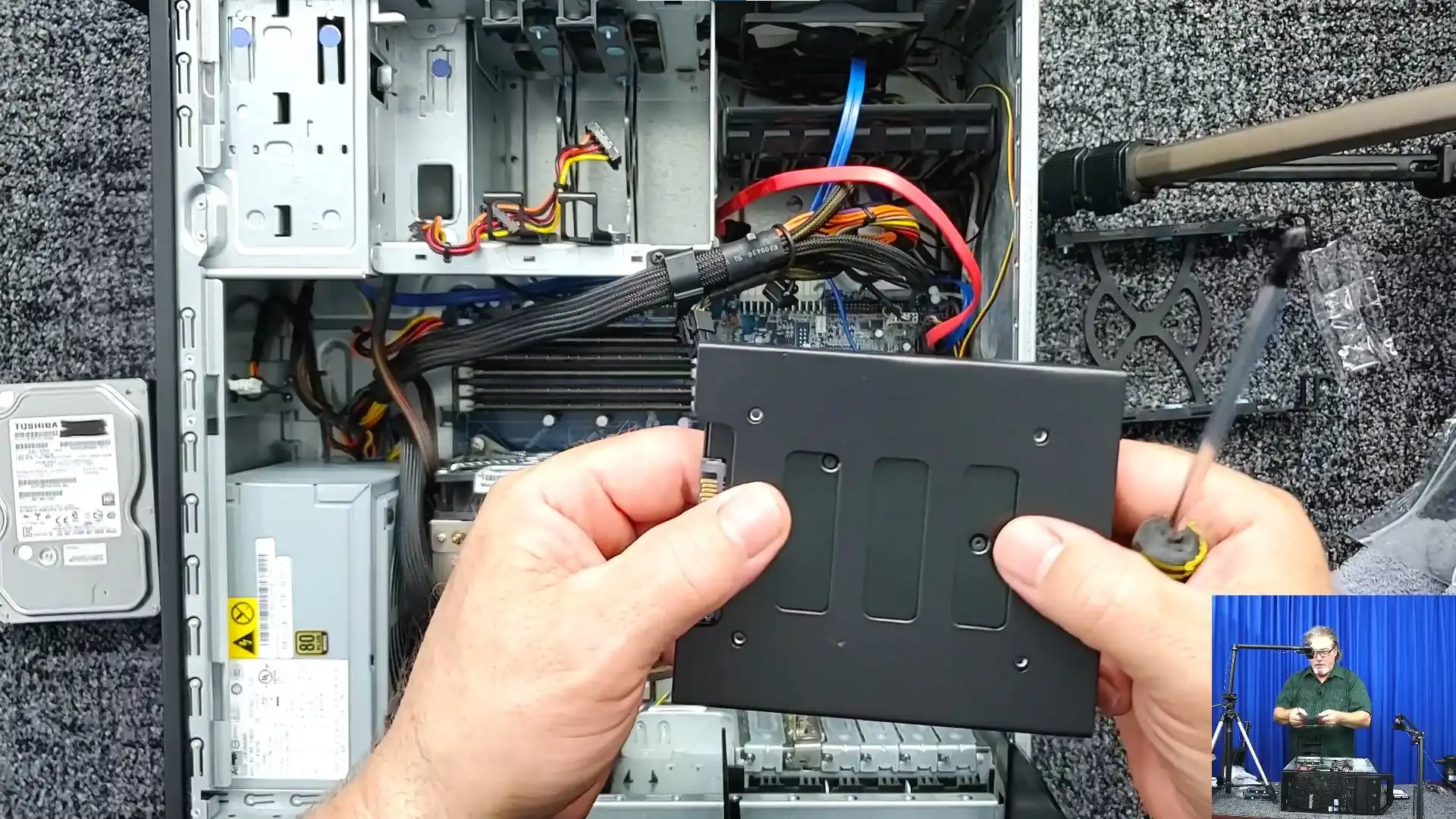
Upgrading storage involves adding an SSD for the operating system and a 500GB hard drive for additional storage. This setup improves boot times and overall system responsiveness.
Here’s how to do it:
- Install the SSD in a drive bay using an adapter if necessary.
- Mount the 500GB hard drive in another drive bay.
- Connect the SATA and power cables to both drives.
For more details on SSD benefits and installation, refer to this complete guide to installing an SSD.
Finishing Touches
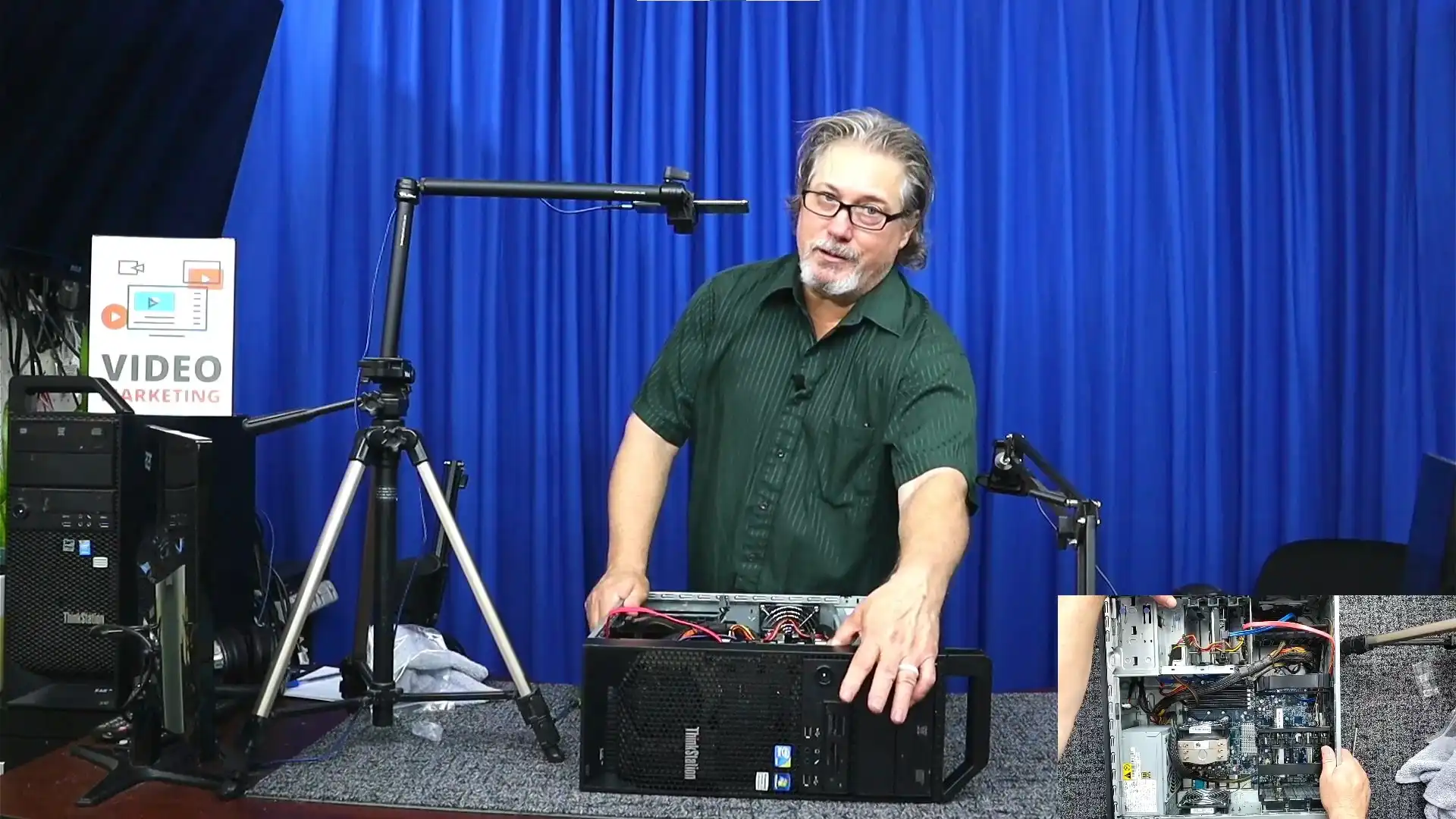
With the new CPU, memory, graphics card, and storage in place, your Lenovo ThinkStation S20 is ready to deliver enhanced performance. Double-check all connections, ensure the components are securely installed, and close the case.
This upgrade extends the life of your workstation and enhances its capabilities for tasks such as video editing, photo editing, and general business applications.
If you found this guide on how to upgrade a Lenovo ThinkStation S20 workstation helpful, feel free to share it and explore more articles on our website for additional tech tips and tutorials.